Speakers
Speakers receive audio from spatialization buses that drive them. One speaker or set or speakers can be driven by one or more spatialization buses. The signal then goes through the Output it is connected to.
This section of the documentation addresses the following section of the audio path in HOLOPHONIX.
Inspector's Header
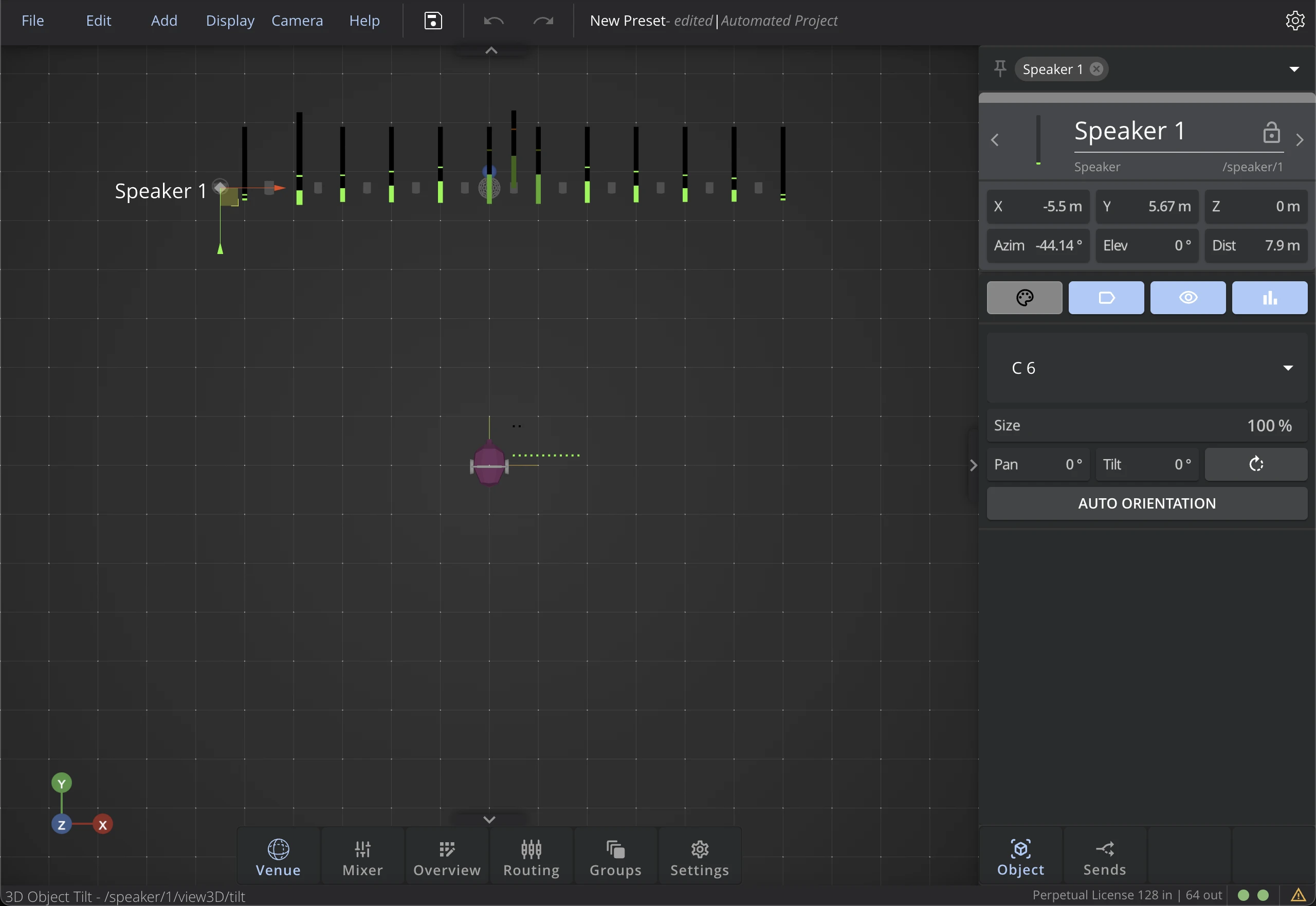
As documented in the Inspector page, the Inspector's Header for a Speaker displays its general parameters: Name, Lock, Color, and OSC address. It also features its position.
Position
Move or position the Speakers directly in the 3D Venue, or by entering its coordinates in the Inspector, or in the Overview. Two coordinate systems are available: see Coordinates Systems for more detail.
Contextualizing Tabs
Two tabs are available for Speakers: Object, and Sends.
Object Tab
Color
Click on this button to set the elements' color.
Label Visibility
Click on this button to display or hide the element's label in the 3D Venue.
Object Visibility
Click on this button to display or hide the element's 3D object in the 3D Venue.
VU Meter Visibility
Click on this button to display or hide the element's VU meter in the 3D Venue.
3D File
The 3D model of the Speakers can be changed to help identify them in the 3D Venue.
3D Scale
The individual display size of each Speaker can be adjusted with the 3D Scale factor. When the scale is set at 2, the displayed size will be twice as big.
Orientation
The orientation parameters only set the display of the 3D model. See the 3D orientation section of the coordinate system page for more details.
When using the WFS, the orientation of the loudspeakers is taken into account. Please check the orientation of your loudspeakers when setting up a WFS bus.
Auto Orientation
Enable Auto Orientation to make the Speaker automatically face a chosen reference point. When active, the Pan and Tilt values become derived from the selected target and update in real time whenever that target is moved.
This is especially useful with WFS buses, where having every loudspeaker oriented toward a common reference point gives a consistent rendering across the array.
Target
Choose what the Speaker orients toward when Auto Orientation is enabled:
- Origin - the center of the 3D Venue (default).
- Bus N - the reference point of any existing bus. The Speaker re-orients automatically when that bus's reference point is moved.
The Target selector only appears when Auto Orientation is enabled. If the selected bus is later deleted, the target falls back to Origin automatically.
Sends Tab
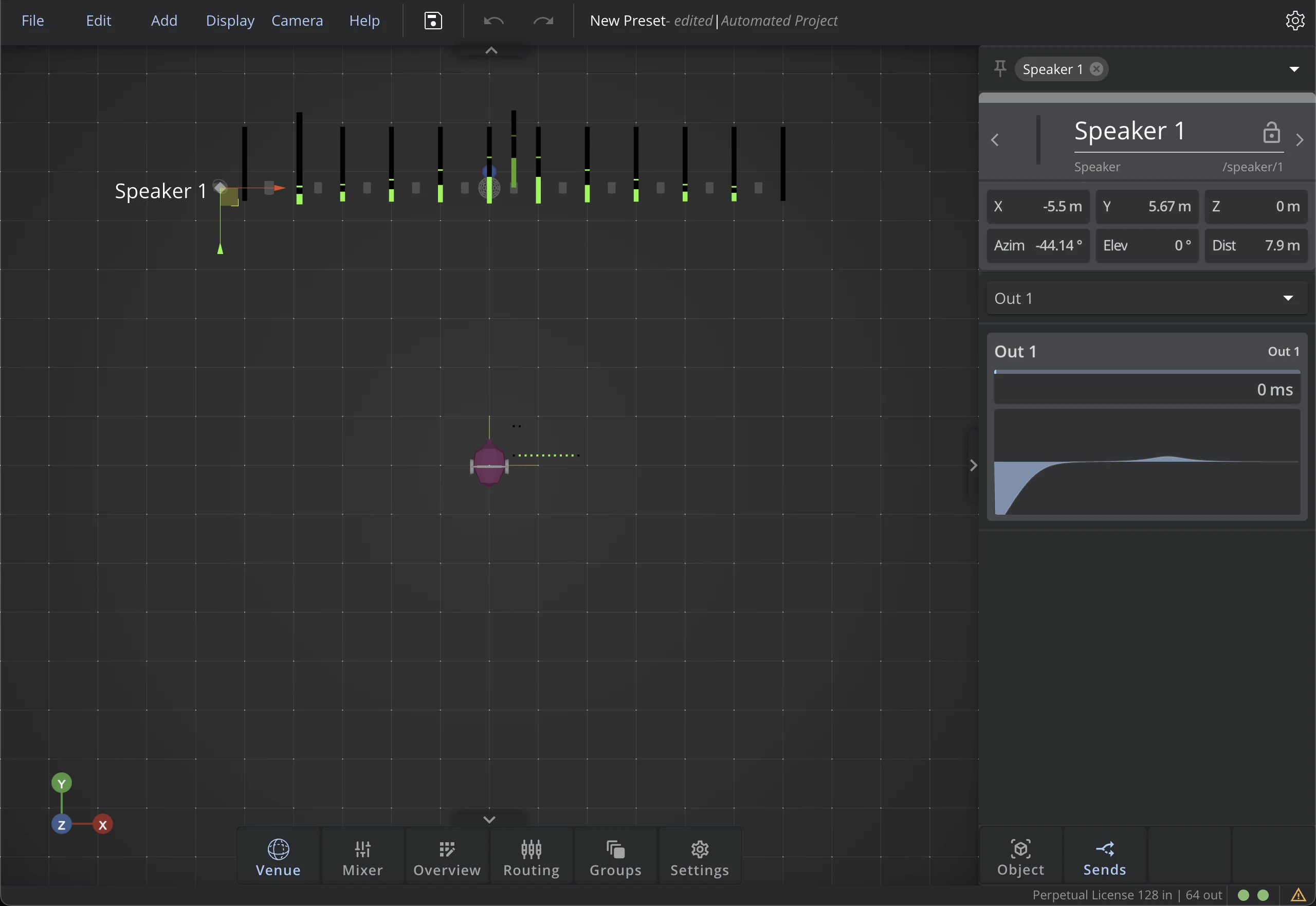
Quick Routing | Speaker to Output
Use the dropdown menu to quickly perform Speaker to Output routing.
Output Delay
Adjust this setting to apply a Delay to the Output, from 0 to 5000 ms.
Output EQ
You can adjust EQ (see documentation) of the Output to which the Speaker is connected.
The EQ is associated to the current Output and not to the Speaker. Therefore, if you change the output routing, the EQ will stick to the output channel and not on the Speaker object itself.