Spatialization Bus
Buses receive audio from Sources and drive a specific set of loudspeakers based on the chosen algorithm. Each spatialization bus is associated with a reverberation bus.
The settings of the bus internally control the associated panning module of each source assigned to that bus.
There are no limitations to the quantity of buses you can create. However, you need to be vigilant to the processing power when using a large number of buses.
This section of the documentation addresses the following section of the audio path in HOLOPHONIX.
The bus position allows you to create local spatialization effects, for example by placing the bus origin close to a specific group of speakers. This can be especially useful for busses using angle-based amplitude panning algorithms, as the bus position will be the reference point for the angle calculations.
Types of Algorithms
HOLOPHONIX includes 4 types of algorithms:
- Algorithms that aim at synthesizing the sound field:
- Amplitude panning algorithms:
- Angular Based:
- Distance Based:
- Binaural: an immersive algorithm dedicated to headphones listening,
- Stereophonic algorithms that can be used for multiple applications such as to automatic "down mix":
- Stereo Pan
- Stereo AB
- Stereo XY
Inspector's Header Settings
The Header section is identical for all buses.
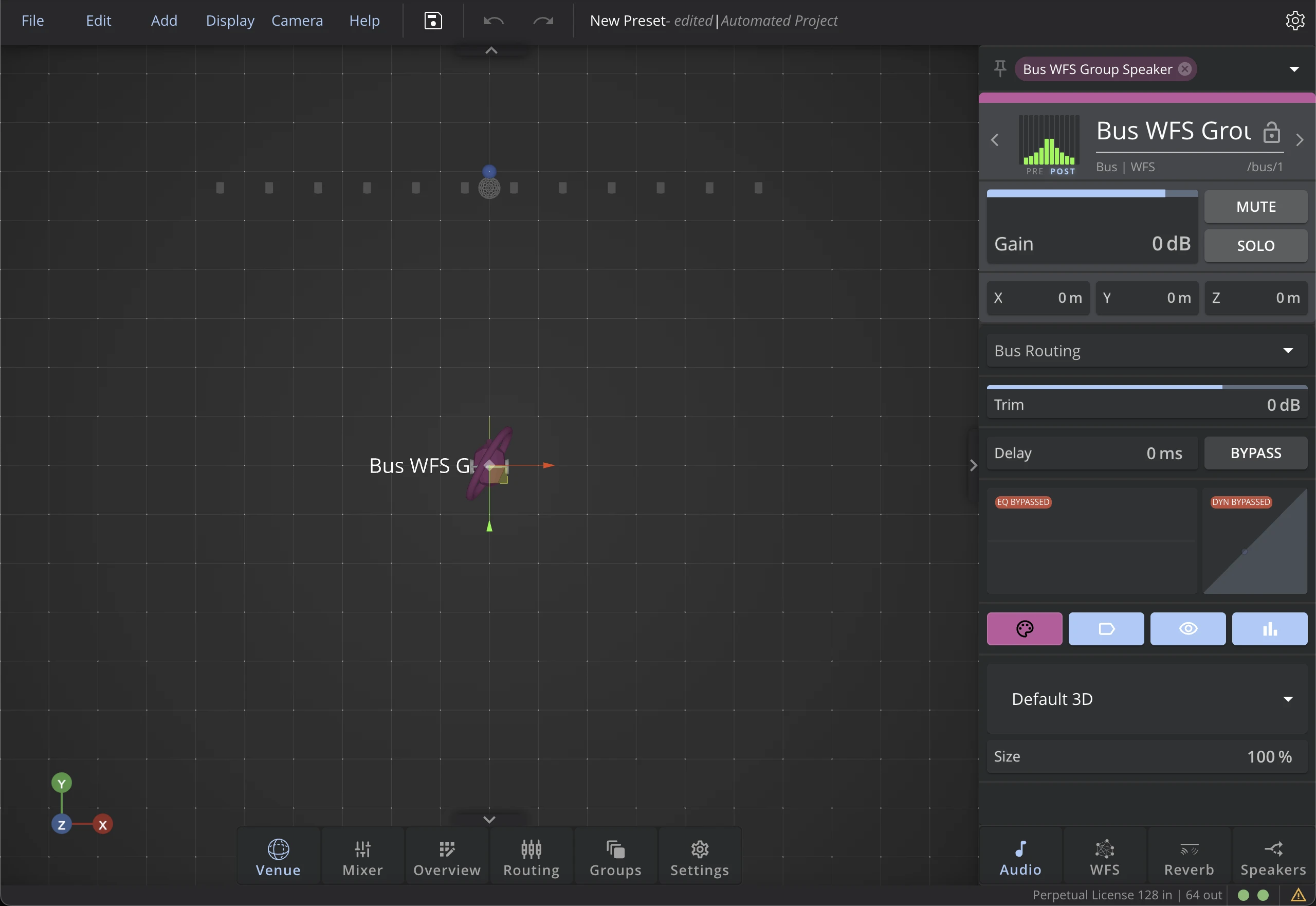
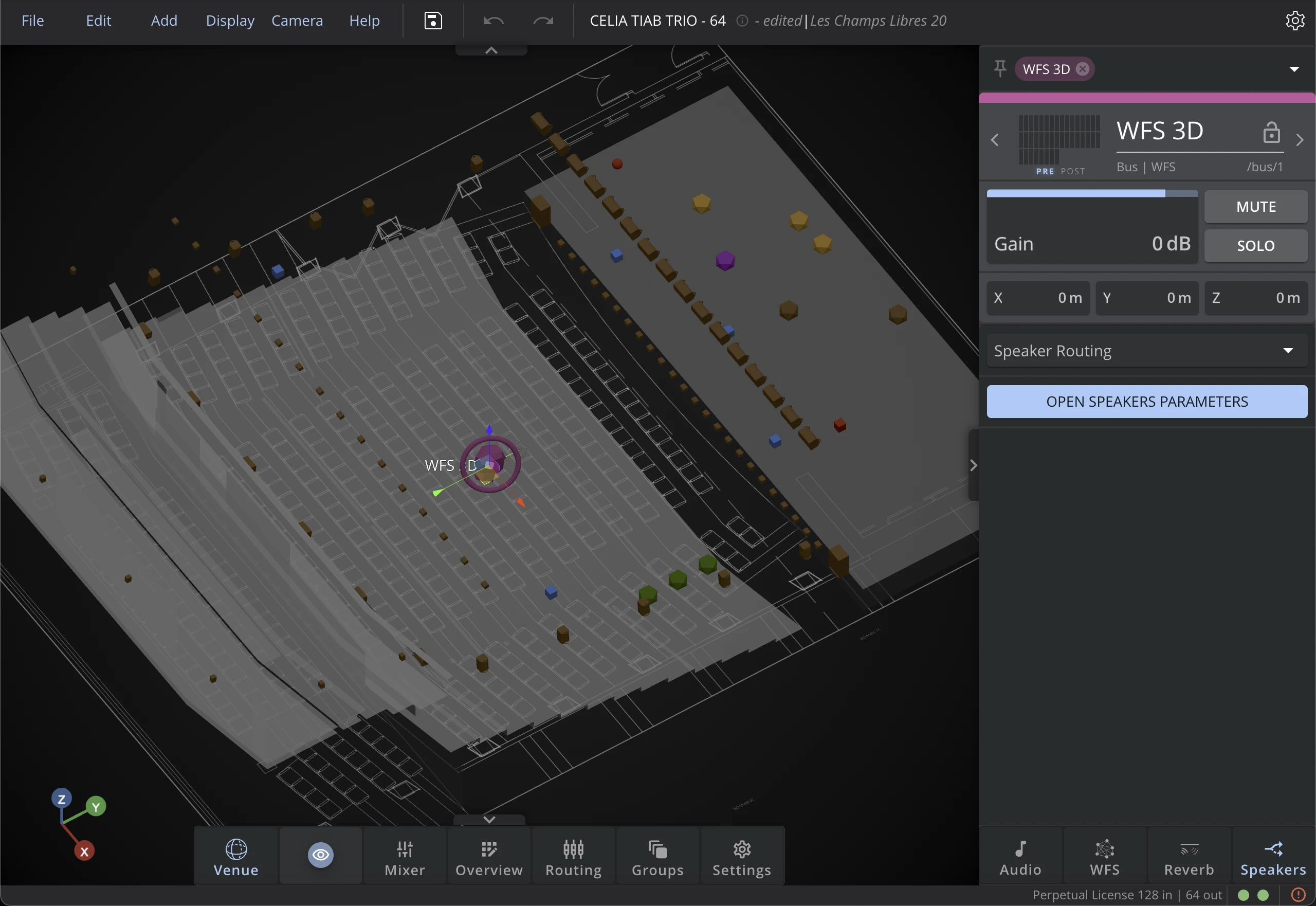
Gain
The gain sets the general level of the bus. It ranges from -60 dB (no signal) to +12dB, and can be accessed via the Mixer, with faders.
Mute
Use the mute function to cut the audio of a bus. When a bus is muted, its computation is deactivated, thus saving processing power.
Activating the bus mute will also activate the reverberation MUTE. You can then un-mute individually the reverb, in the Reverb Tab.
Solo
Activate Solo on a bus to listen to that bus only. It can be activated on multiple buses at the same time. To clear all active solos, use the Solo Clear button in the Option bar.
Monitoring
Use the monitoring function to listen to the 3D binaural rendering of a bus through the monitoring bus. Several buses can be monitored at the same time. Monitoring is available on all buses except WFS.
Check the Monitoring bus page for more details.
You can choose to either use the optional button as a Monitoring or Solo button from the Misc tab in Settings.
Position
Use bus position to set the reference point for the spatialization of the sources assigned to that bus. By default, the bus position is set at the center of the 3D Venue, but it can be moved anywhere in the 3D Venue.
Contextual Tab Settings
This section documents the Tabs parameters common to all buses. However, other parameters significantly vary based on which algorithm you are using. Please check the different Type of Algorithms and click on the Bus you'd like to learn more about.
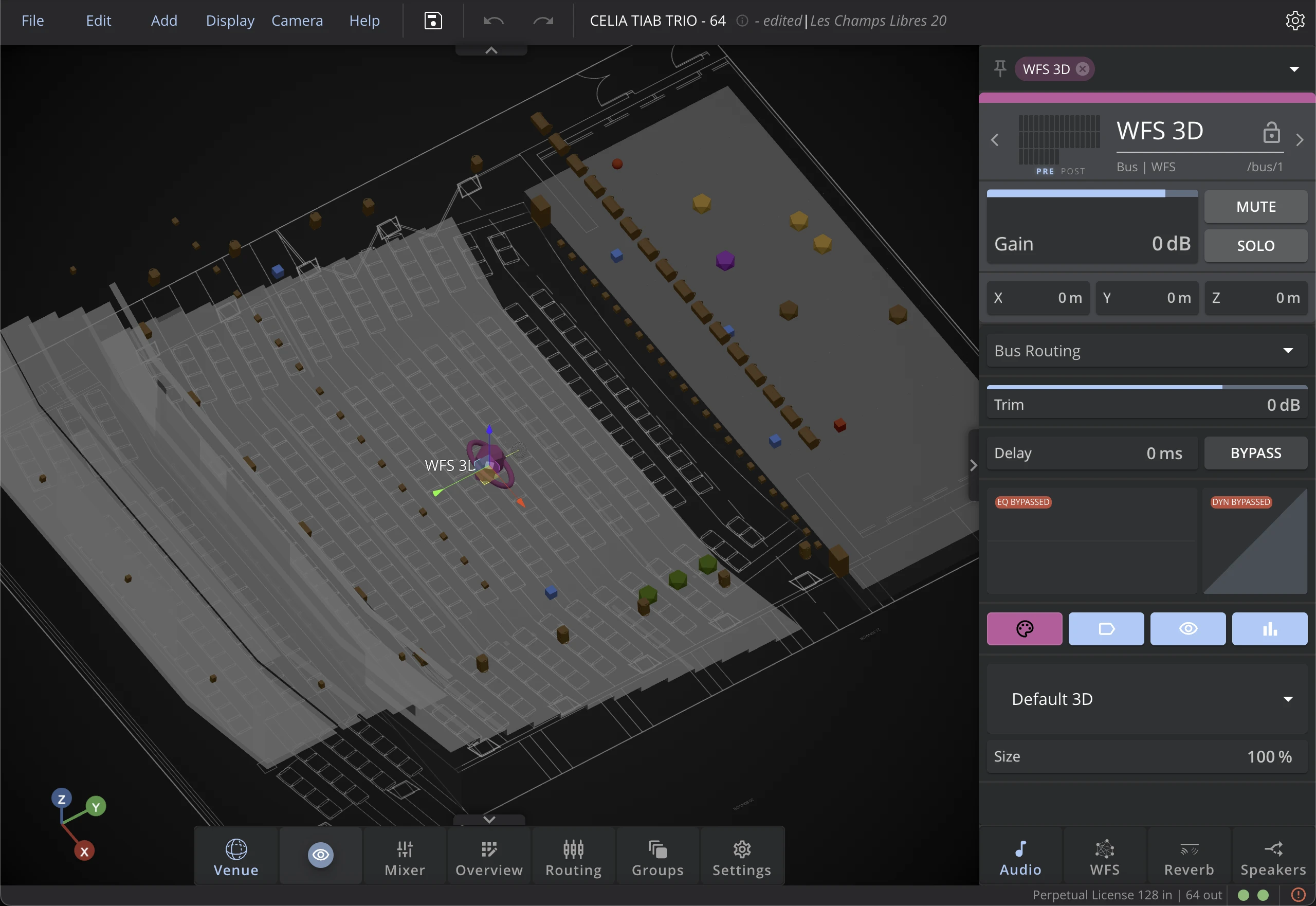
Audio Tab
Quick Routing | Source to Bus
Use the dropdown menu to quickly perform Source to Bus routing.
Trim
Use the trim to adjust the level of the source between -80dB (no signal) and +30dB. The trim function is especially useful to minimize the level differences between the sources.
Delay
The delay allows to time-align different bus when working with reinforcement subsystems.You can choose to Bypass it.
Equalizer and Dynamics
Those preview buttons show the current state of the bus' EQ and Dynamics, including if it is bypassed or not. Click on one or the other to open the Window and modify their parameters. To learn more about it, check the Equalizer and Dynamics pages.
Color
Sets the color of the bus 3D object in the 3D Venue. This can be useful to visually identify the bus in the 3D Venue, especially when working with a large number of buses.
Label
Allows to show or hide the bus label in the 3D Venue.
Visible
Allows to show or hide the 3D representation of the bus in the 3D Venue. This can be useful to declutter the 3D Venue when working with a large number of buses, while still being able to select them from the inspector or the Routing.
VU-Meters
Shows or hides VU-Meters of the bus in the 3D Venue.
3D Object
Allows to choose the 3D object representing the bus in the 3D Venue. This can be useful to visually differentiate buses in the 3D Venue, especially when working with a large number of buses.
Scale
Sets the scale of the bus 3D object in the 3D Venue.
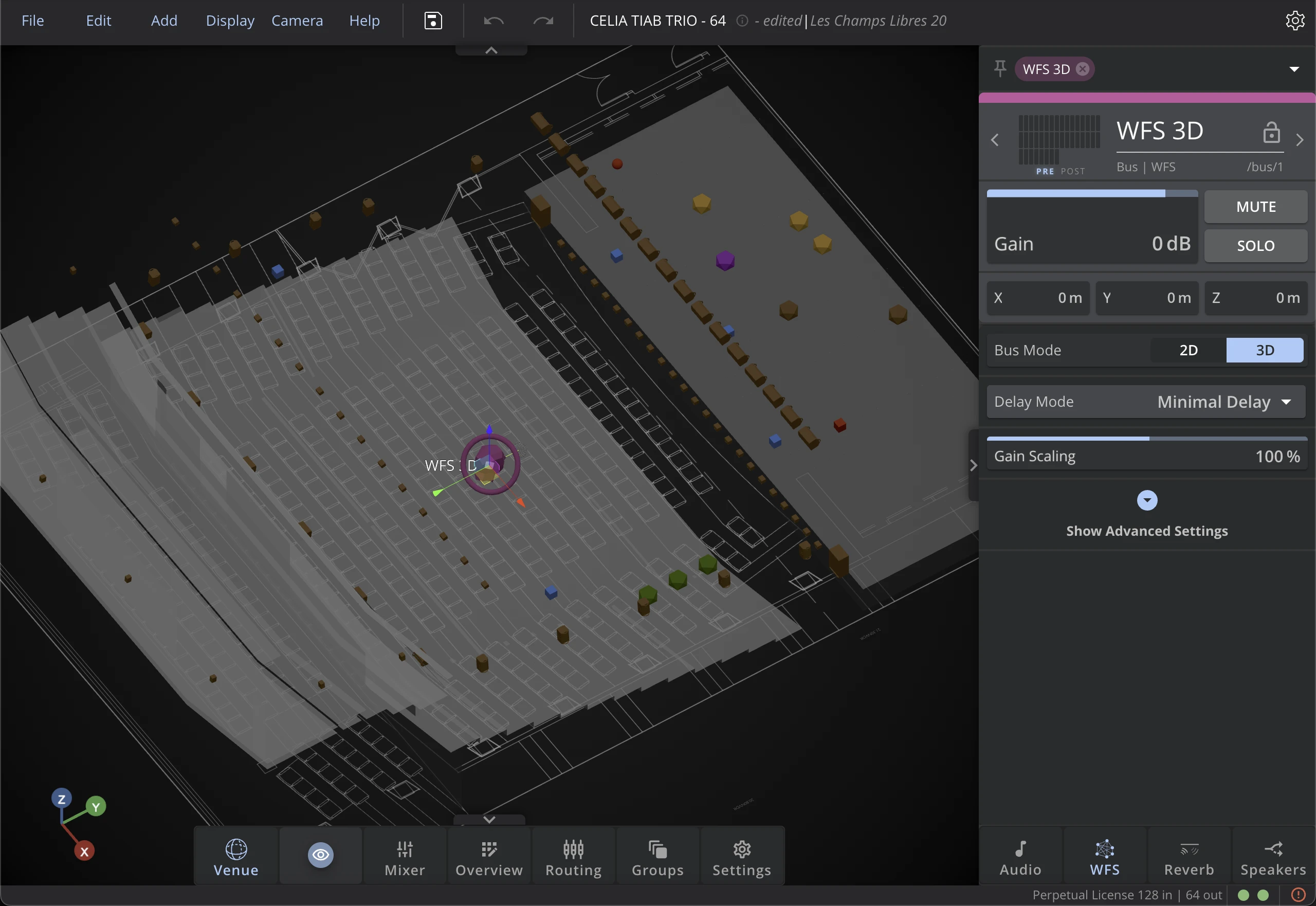
Algorithm Tab
Based on which algorithm you have selected for the bus, this tab will display specific parameters. Check the different Bus Algorithm settings of the documentation to see which settings are available:
- WFS
- Higher Order Ambisonics
- Amplitude Panning : VBAP / VBIP, LBAP, Angular 2D, KNN
- Binaural
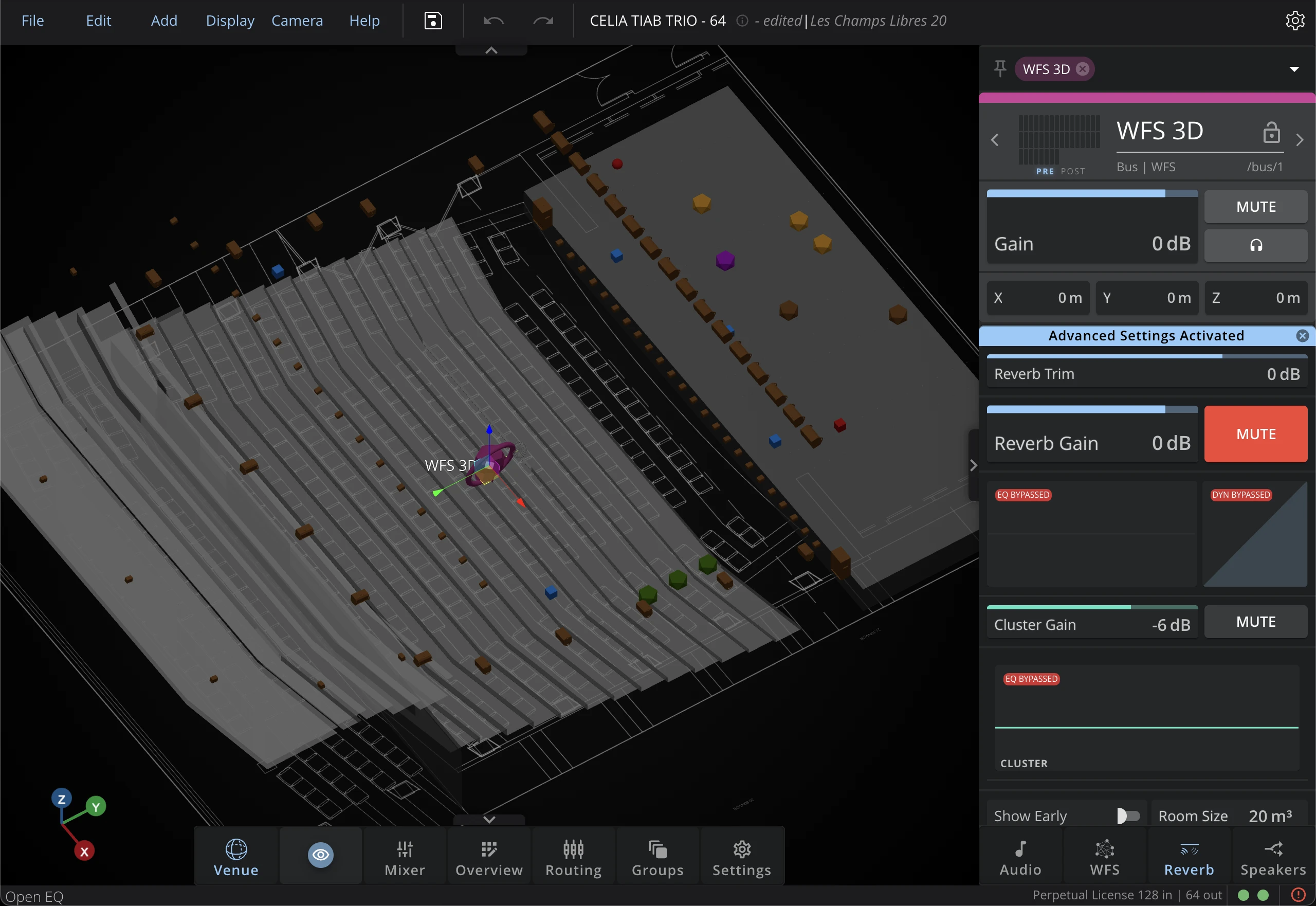
Reverberation Tab
This tab will be identical for all buses.
Every spatialization bus has its own independent reverberation bus, adapted to the spatialization format. Check the Reverberation page to learn how to operate the reverberation parameters, or refer directly to the reverberation bus parameters section.
Speakers Tab
Open Speaker Parameters
When assigning loudspeakers to a spatialization bus in the Routing, the loudspeakers positions are automatically sent to the spatialization bus.
However you can edit (for each bus individually) the loudspeakers position, gain and delay correction.
The Speakers Parameters window displays all the speaker positions that have been automatically transmitted to the algorithm.
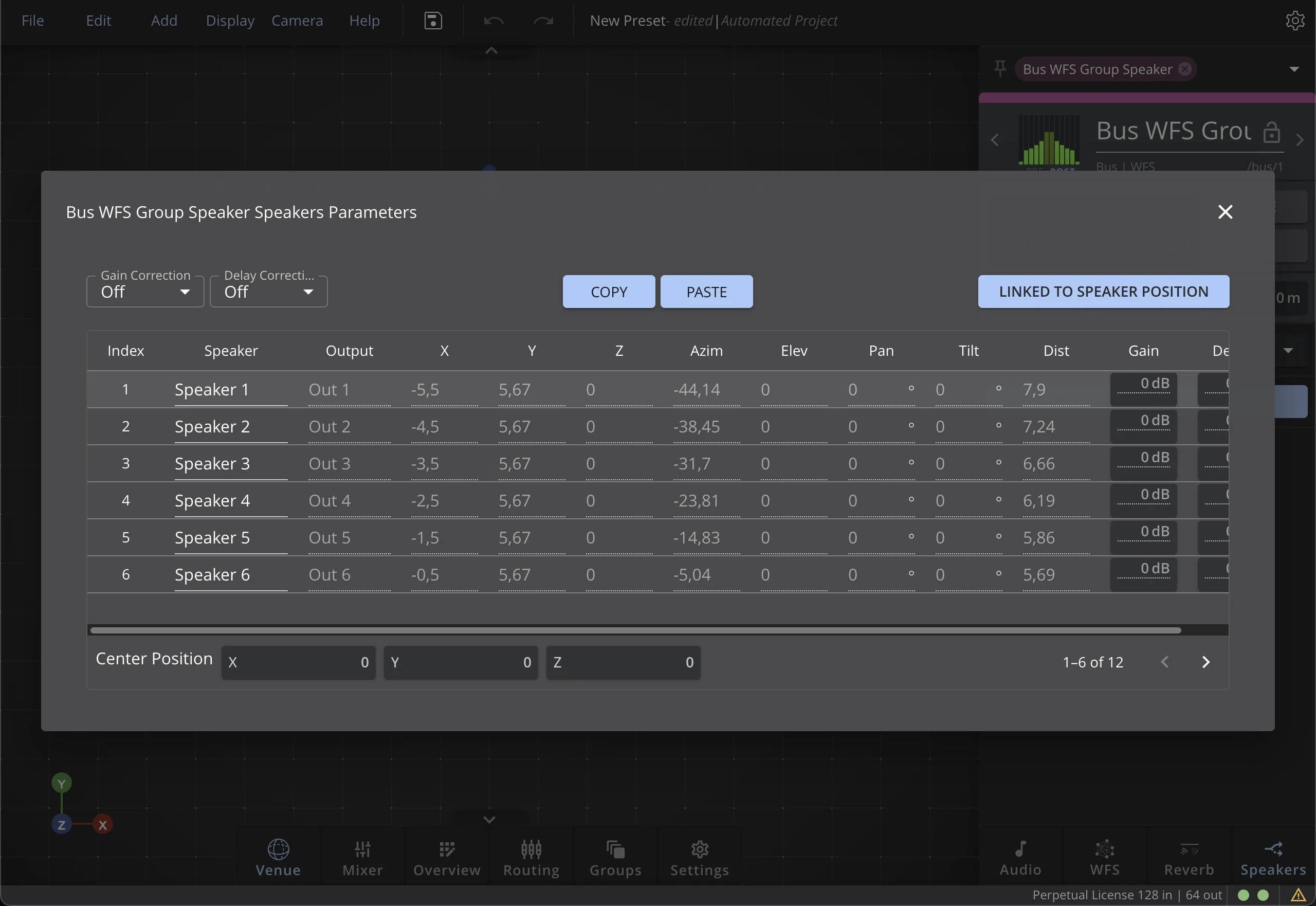
To manually edit the speaker positions for the selected bus, simply deactivate the LINKED TO SPEAKER POSITION option.
Use the Copy and Paste functions to copy a specific set of parameters to another bus.
Linked to speaker position
Deactivate this setting to manually adjust the speaker positions on the selected bus.
When activated, the speaker positions cannot be edited manually, and will correspond to the connected speaker's position.
Gain & Delay correction
The gain and delay corrections allow you to time-align and level-align the signal sent to every speaker, for the selected bus only.
Three modes are available for both gain and delay correction, and can be selected from the two drop-down menus at the top:
Off
It is the default setting. This will disable the gain or delay alignment.
Manual
The manual mode will enable manually setting the gain or delay values.
Auto
The automatic mode will let HOLOPHONIX compute the gain and delay values for a perfect phase and level alignment at the bus reference point.
Gains and delays are computed as if all the speakers were placed on a circle or a sphere. By evaluating the distance between the virtual position and the real speaker position, HOLOPHONIX determines the delay and gain attenuation.
Loudspeakers that are the closest to that reference point will receive a maximum delay and gain attenuation, whereas the farthest speakers will receive no delay or gain attenuation.
The automatic gain and delay compensation can be useful on algorithms such as HOA or Amplitude Pannings, that are conceived to offer optimal results in a circular or spherical configuration, but that are used in an irregular setup.