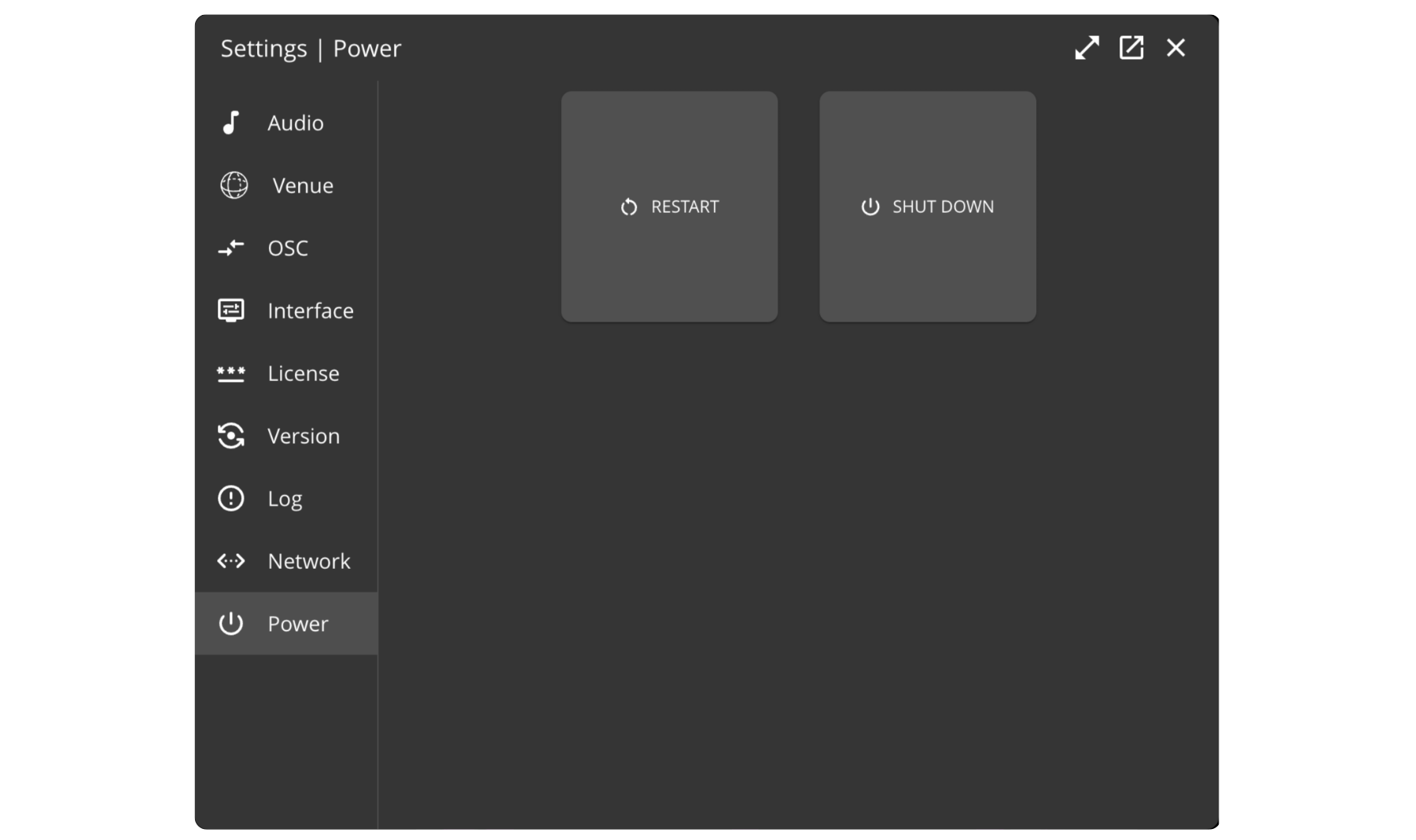
Settings Window
The Settings Window is used for various general configuration operations (such as audio parameters, OSC settings, shutting down or restart the processor, etc.). Advanced tasks such as network configuration or system updates can also be performed directly from the web remote interface.
Audio Tab
- Processor
- Native
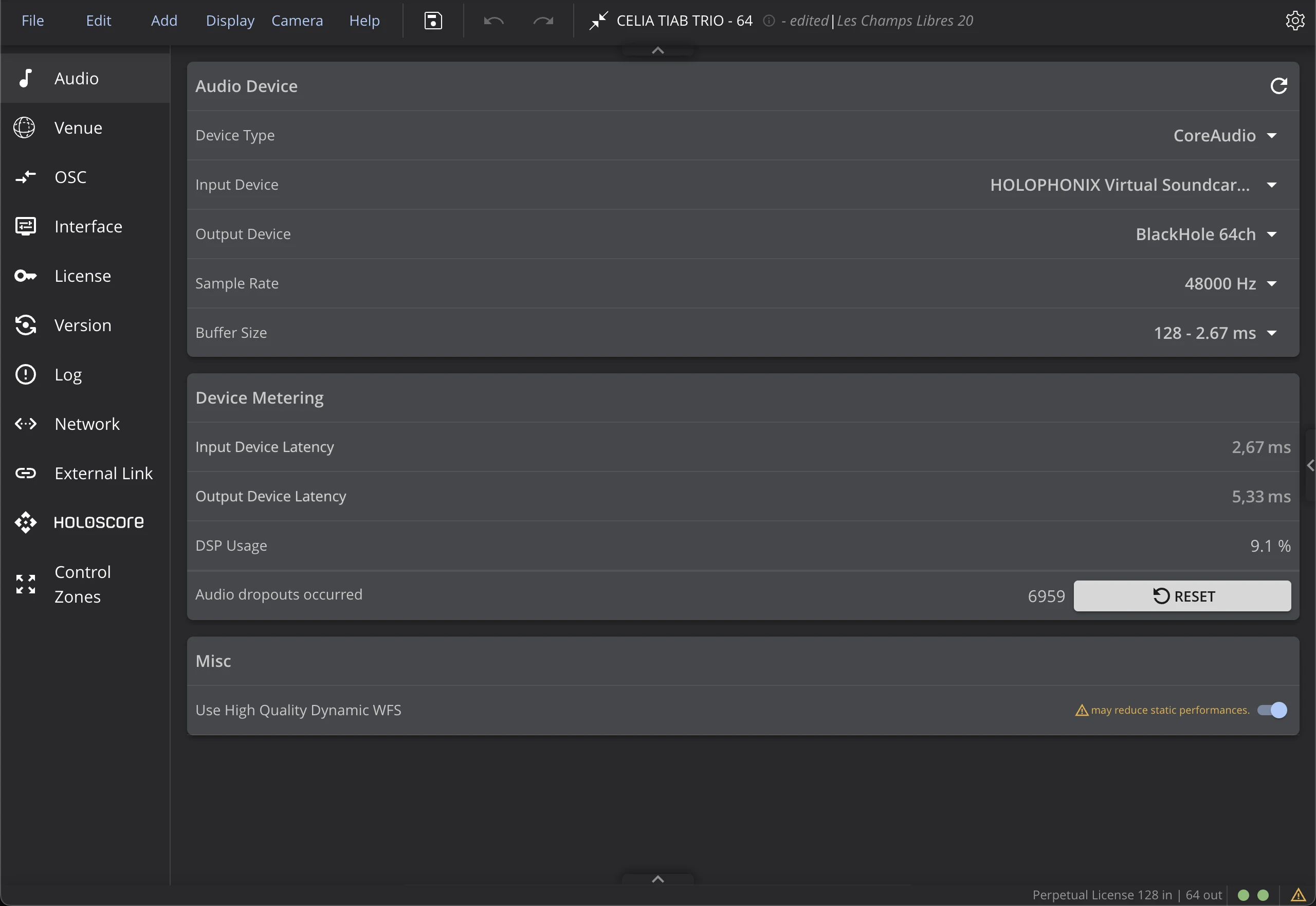
Use this tab to set the buffer size of the Audio Engine. To set the sample rate, use the Dante Controller® application.
Use this tab to set the input and output devices of your HOLOPHONIX Native App, the sample rate and the buffer size.
Audio Device
Sample Rate
For HOLOPHONIX Processor, use the Dante Controller® application to set the desired sample rate. For HOLOPHONIX Native, the sample rate can be set directly from the Audio tab. Note that the sample rate is applied to both input and output devices.
Buffer Size
HOLOPHONIX was designed to provide low latency while maintaining high CPU performance. As a result, you can use very low buffer sizes with your HOLOPHONIX processor. However, for sessions with high DSP usage, it may be necessary to increase the buffer size to prevent audio dropouts or distortion (the buffer size is stored in the HOLOPHONIX's preset).
Latency
The HOLOPHONIX Audio Engine reports its total internal latency, which depends on the selected buffer size and sample rate, along with the additional latency introduced by the internal driver. Reducing latency by adjusting the buffer size should be part of a broader performance optimization strategy.
This displayed latency is not considering along with the latency introduced by Dante® AoIP protocol. Dante® latency is accessible via the Dante Controller app.
Device Metering
The DSP/CPU usage indicator and the Audio Dropout Counter help you to optimize the performance of your preset. The counter is incremented for every sample that is not calculated correctly. To avoid a global latency that would be too high, check the latency of every piece of equipment in your audio system.
Misc
High Quality Dynamic WFS
By default, an optimization is applied to improve static performance when the sources are not moving. In certain situations where WFS sources frequently alternate between static and dynamic motion, it may be more interesting to enable this parameter to avoid audible artifacts.
3D Venue
General
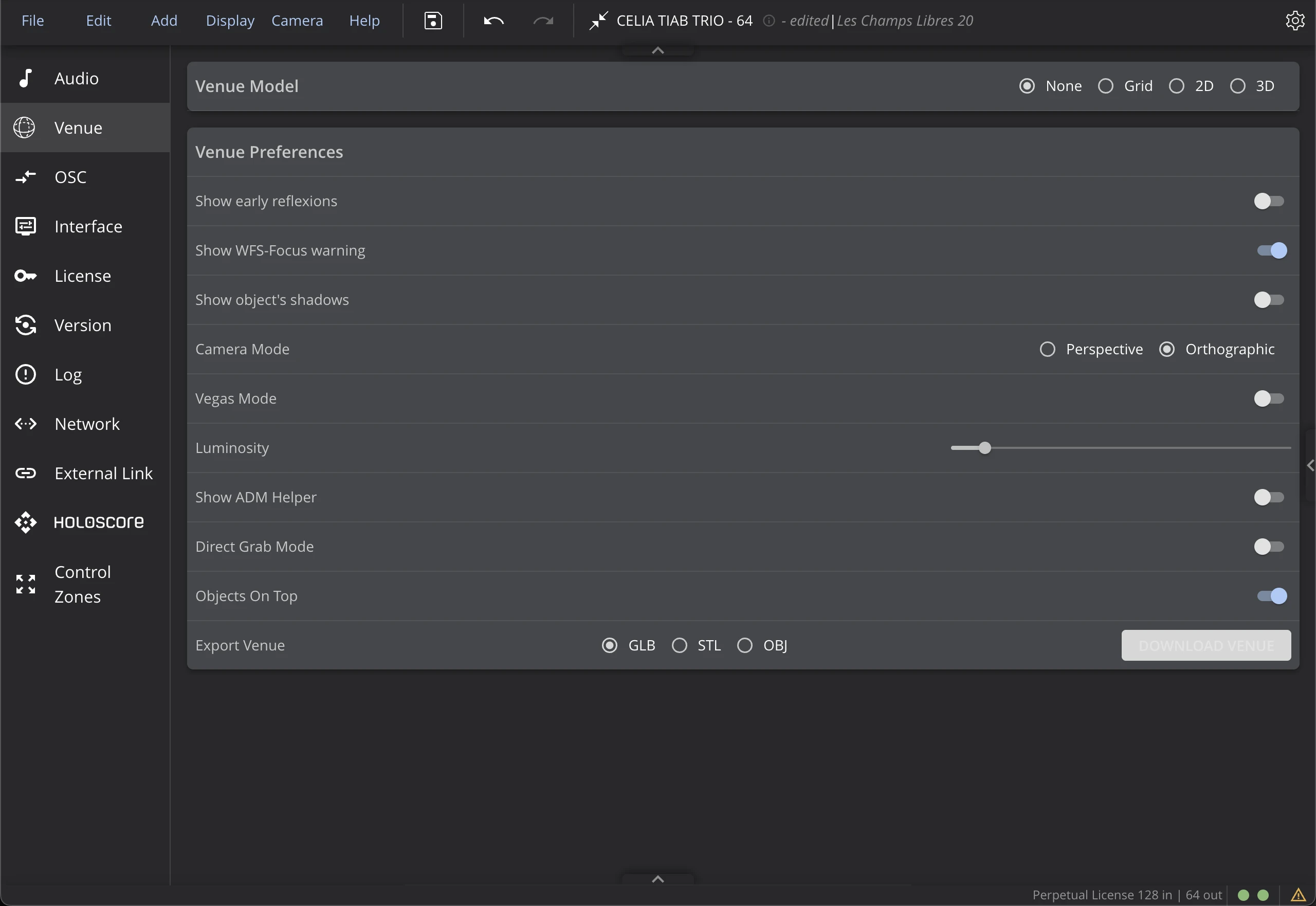
Show early reflections
Display the virtual positions of the early reflections.
Show WFS-Focus warning
Activate this setting to be warned when a Source is moved in front of a loudspeaker array assigned to a WFS bus. To learn more about it, check the WFS Requirements specifications in the documentation.
Show object's shadows
You can hide the object's shadows in the 3D Venue to save on CPU power. However, hiding the shadows makes it harder to evaluate where your objects are placed, and how you move them.
Camera Mode
You can choose the technique of 3D rendering. The Perspective mode might seem more natural, whereas the Orthographic display is probably easier to work with, displaying all the distances at the same size. To learn more, check the Camera Mode in the Option Bar section of the documentation.
Vegas Mode
Activate this setting to enter a visualization mode that automatically spins around the origin of the 3D Venue. Vegas Mode is meant for demonstration purposes and should not be used to work on your project.
Luminosity
This setting adjusts the Brightness of the 3D Venue.
Show ADM Helper
This setting displays a label on top of each source in the 3D Venue, showing its corresponding ADM channel number. This can be useful when working with ADM-OSC automation to identify which source corresponds to which channel number.
Direct Grab Mode
By default, when you click on an object in the 3D Venue, it will be selected and a widget will appear around it. You can then click and drag on the widget elements to move the object.
When Direct Grab Mode is activated, clicking on an object will directly allow you to move it without having to click on the widget. This is especially useful when working with touch enabled devices. See the Tablet guide for more tips on working with tablets and touch-enabled devices.
Export Venue
Allows to export the 3D model of the room in a GLTF (.glb), STL (.stl) or OBJ (.obj) format. This can be useful to reuse the model of the room in other software.
3D
You can import a 3D model of your room (as a .GLB file). To do so, select 3D in the "Venue Model" setting.
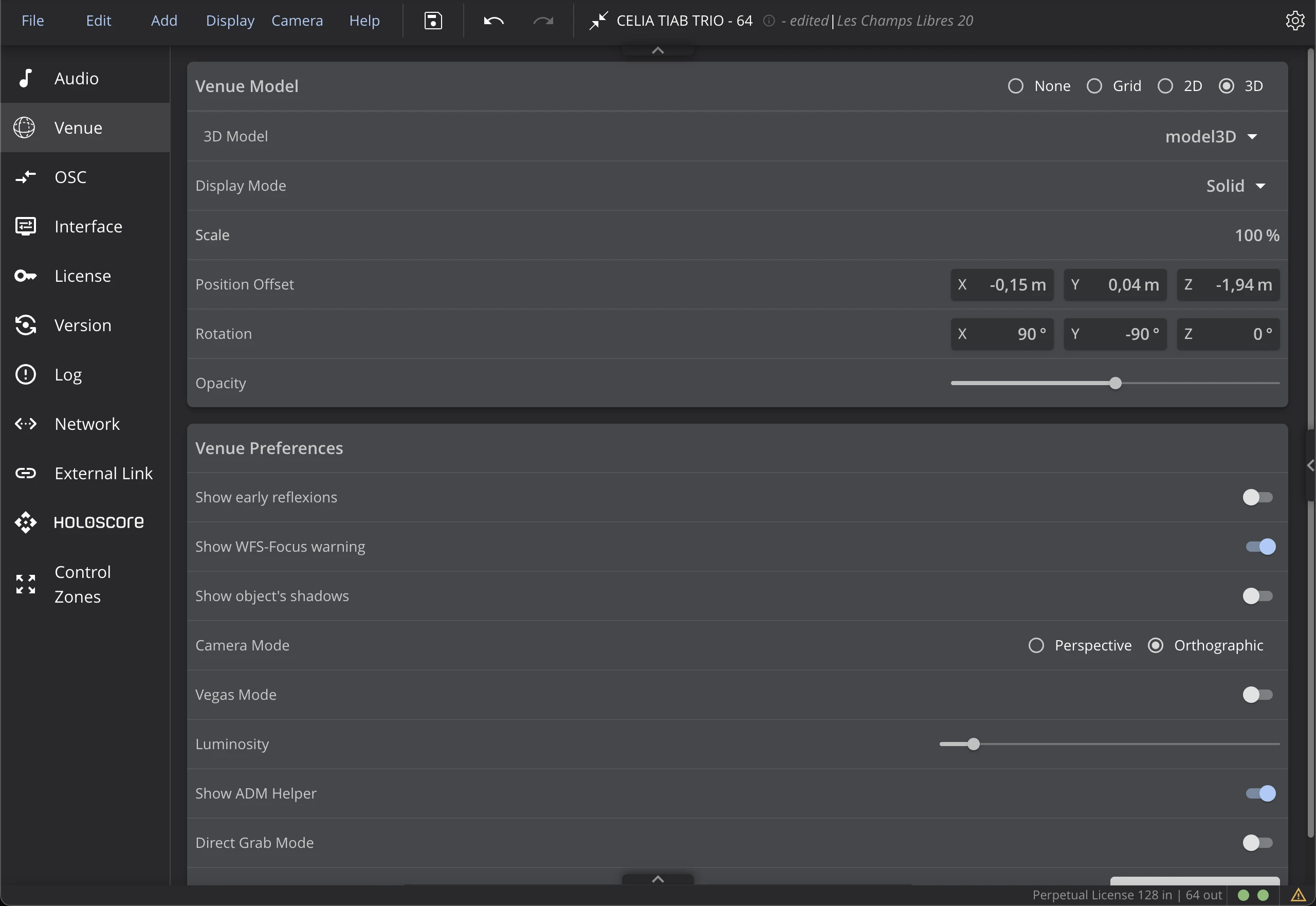
3D Model
To learn how to convert a file to .GLB and import it to HOLOPHONIX, check our YouTube tutorial here.
Click on the Import button to load the 3D model corresponding to your room. Please note that models (and drawings) are saved in Projects, meaning all the Presets in your Project will use the same model.
Display Mode
- A Solid model renders all surfaces, their edges, and thickness. It will therefore be a more or less perfect replica of your room, depending on how accurate your 3D model is. This Display Mode is more CPU-intensive.
- A Wireframe model is a skeletal description of a 3D object. It consists only of points, lines, and curves that describe the edges of your room. Choosing this option is therefore more CPU-efficient, as it does not render surfaces.
Scale, Position Offset, and Rotation
Use the Scale, Position Offset and Rotation settings to adjust the 3D model's positioning in the 3D Venue.
Opacity
This setting defines the transparency of the 3D model. The lower the opacity, the more visible the background is. Opacity does not have any significant impact on CPU usage.
2D
You can import a 2D map of your room (as a .PNG file). To do so, select 2D in the "Venue Model" setting.
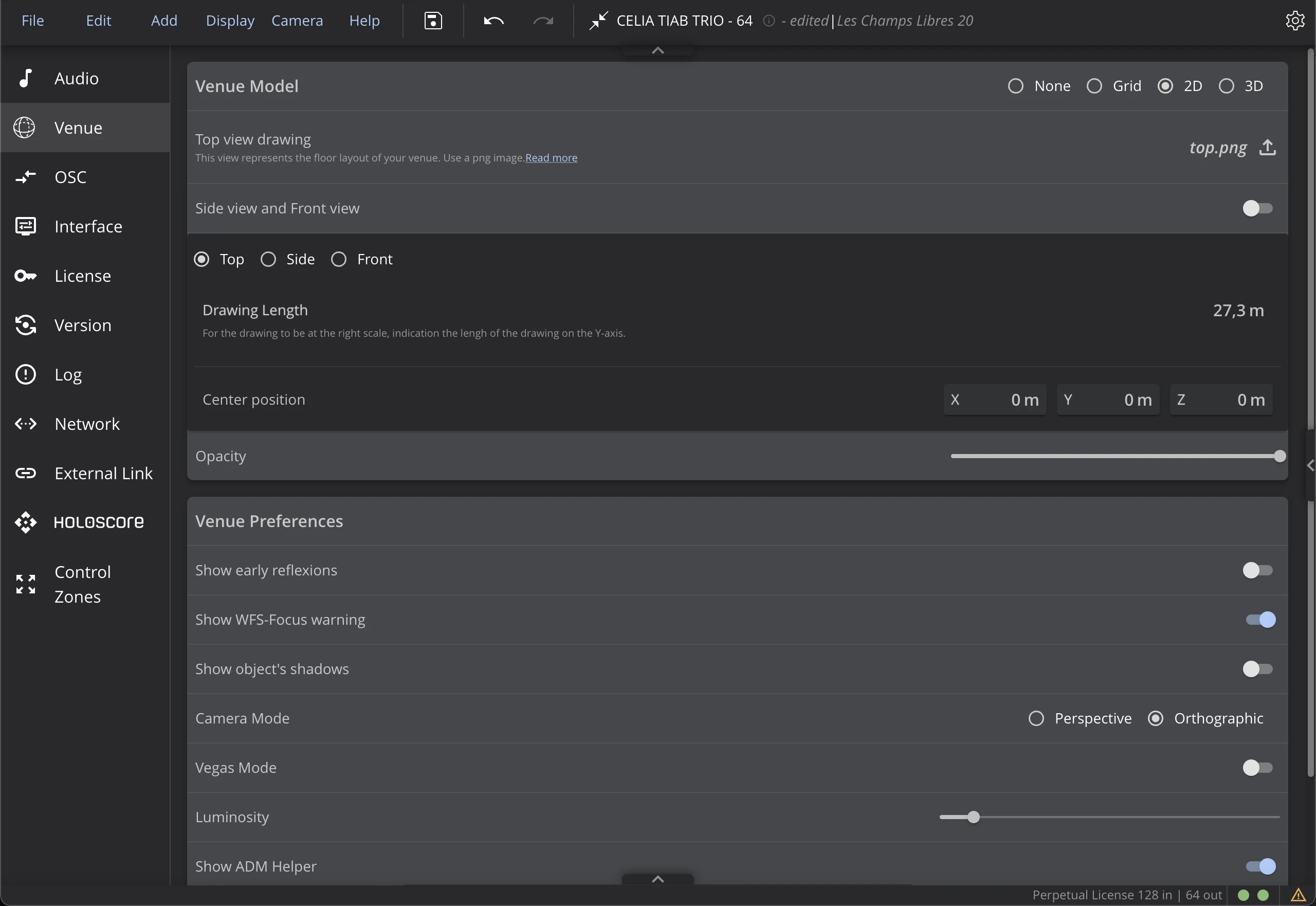
Top View Drawing
Click on the Import button to load the 2D drawing corresponding to the Top View of your room. Please note that drawings (and models) are saved in Projects, meaning all the Presets in your Project will use the same drawings.
Side View and Front View
You can choose to add drawings corresponding to the Side and Front views of your room. This can be helpful to position objects more precisely regarding elevation. Click on the button to activate the display of those views, and add them with the Import button.
Drawing Length and Center Position
Use the Drawing length setting along with the X, Y, Z Offsets of the Center Positionto adjust the map's positioning in the 3D Venue.
In Advanced Mode, you can also import Side and Front drawings. Activate "Show Side and Front Drawings" to display them in the 3D Venue.
Opacity
This setting defines the transparency of the 2D map. The lower the opacity, the more visible the background is. Opacity does not have any significant impact on CPU usage.
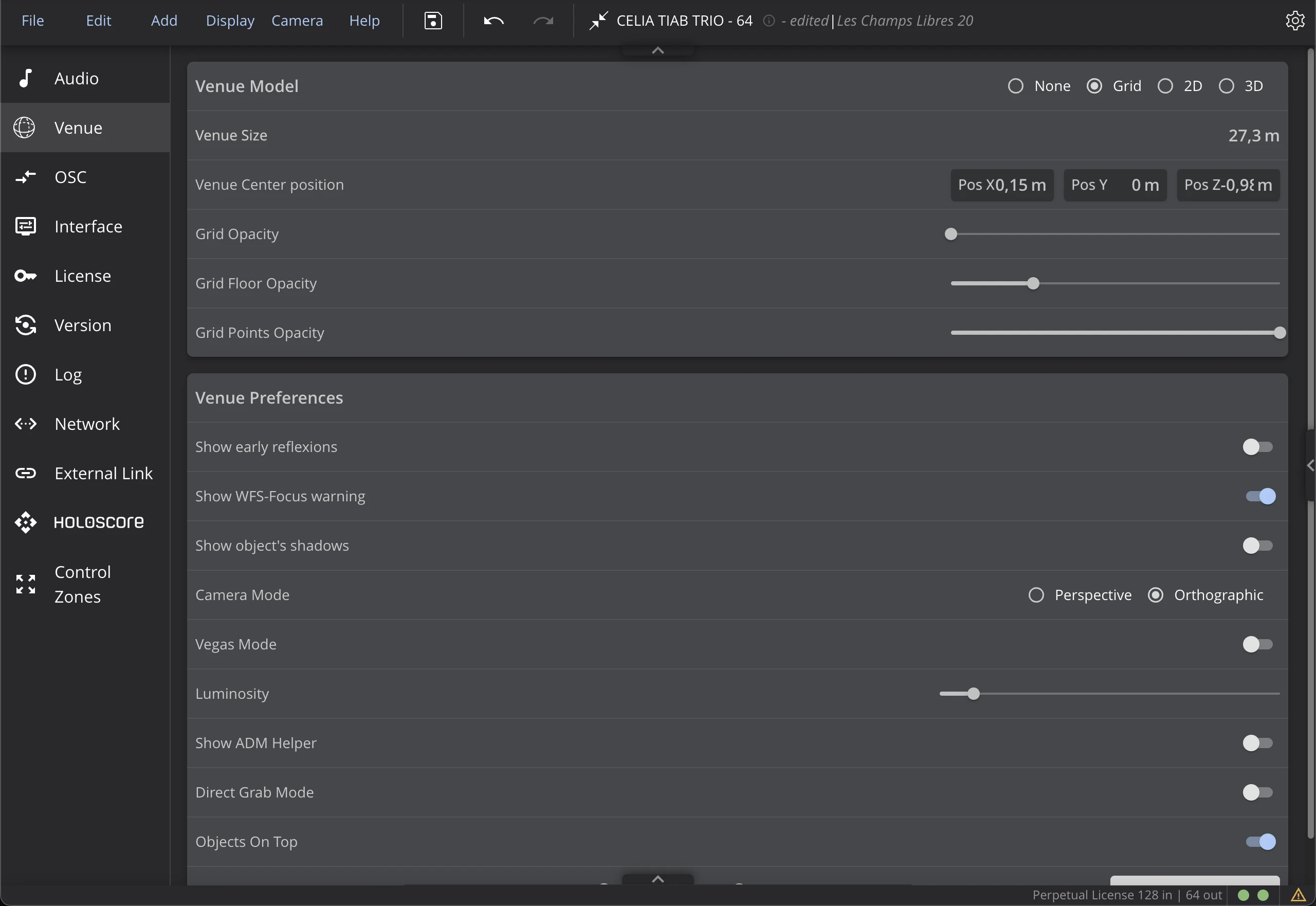
Grid
The grid is a set of horizontal and vertical lines that intersect at regular intervals in the 3D Venue. It serves as a visual reference to help you position your objects more precisely.
Show Head
Activate this setting to display a head icon in the 3D Venue, indicating the position of the listener. This can be helpful to position your objects in relation to the listener's position.
Head Opacity
This setting defines the transparency of the head icon.
Venue Size
The Venue Size settings allow you to adjust the size of the grid in the 3D Venue. The grid is a visual reference that helps you position your objects more precisely. Adjusting the grid size can help you work more efficiently, especially in larger rooms.
3D Venue Center Position
Use the X, Y, Z Offsets of the 3D Venue Center Position to adjust the position of the grid in the 3D Venue. This can be helpful to align the grid with your 3D model or 2D map.
Grid Opacity
This setting defines the transparency of the grid. The lower the opacity, the more visible the background is.
Grid Floor Opacity
This setting defines the transparency of the grid floor. The lower the opacity, the more visible the background is.
Gris Points Opacity
This setting defines the transparency of the grid points. The lower the opacity, the more visible the background is.
OSC Tab
OSC Parameters
Use DPS Usurp
DPS Usurp is an OSC input filtering option useful when too many OSC messages are sent to HOLOPHONIX.
OSC Mouse Rate
When moving a source in the 3D Venue, the interface sends messages to the audio engine (either locally on your computer for HOLOPHONIX Native, or remotely over the network for HOLOPHONIX Processor). With this setting, you can adjust the rate at which messages will be sent to the audio engine when moving a source.
OSC Output Rate
This setting adjusts the rate at which OSC messages will be sent to OSC Send destinations (configured in the Open Sound Control Tab), when moving a source in the 3D Venue.
This setting is only applied to source positioning with the mouse in the 3D Venue. It doesn't apply, for example, to faders in the Mixer View.
Show ADM Helper
This setting displays a label on top of each source in the 3D Venue, showing its corresponding ADM channel number. This can be useful when working with ADM-OSC automation to identify which source corresponds to which channel number.
OSC Output
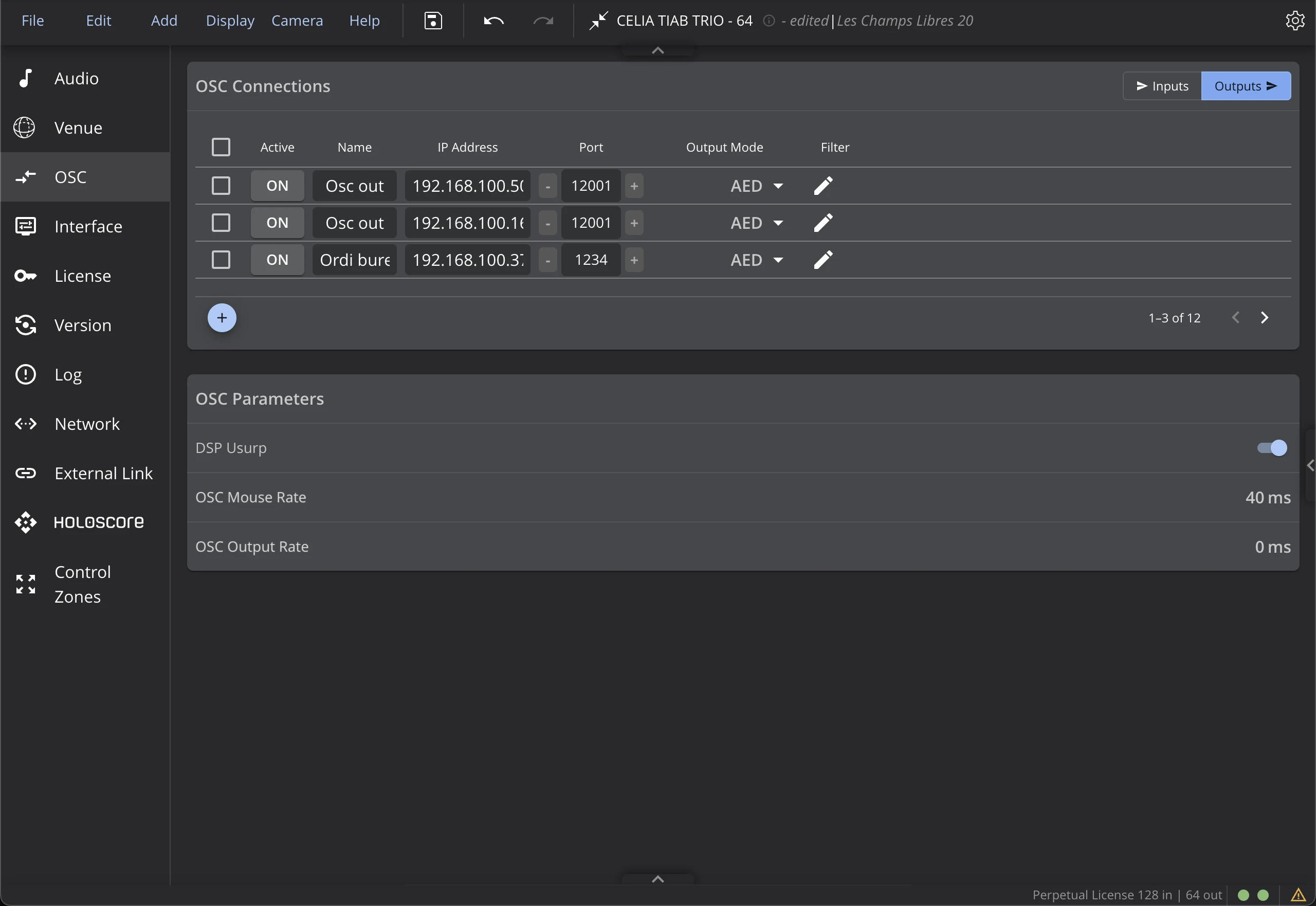
To send OSC messages from HOLOPHONIX to an external device, add an OSC output with the Add button, fill in the destination IP address and port number, then activate the output by clicking on the On button.
Use the Coordinate column to choose if the sources' positioning will be outputted in XYZ or AED formats.
The OSC Output Filter allows you to filter out of the OSC output messages containing specific keywords or string of characters.
OSC Input
HOLOPHONIX can receive OSC on several inputs at once. Each input listens on its own port, so different applications — for example a DAW, a show-control system and a custom controller — can send OSC to HOLOPHONIX at the same time without sharing a port.
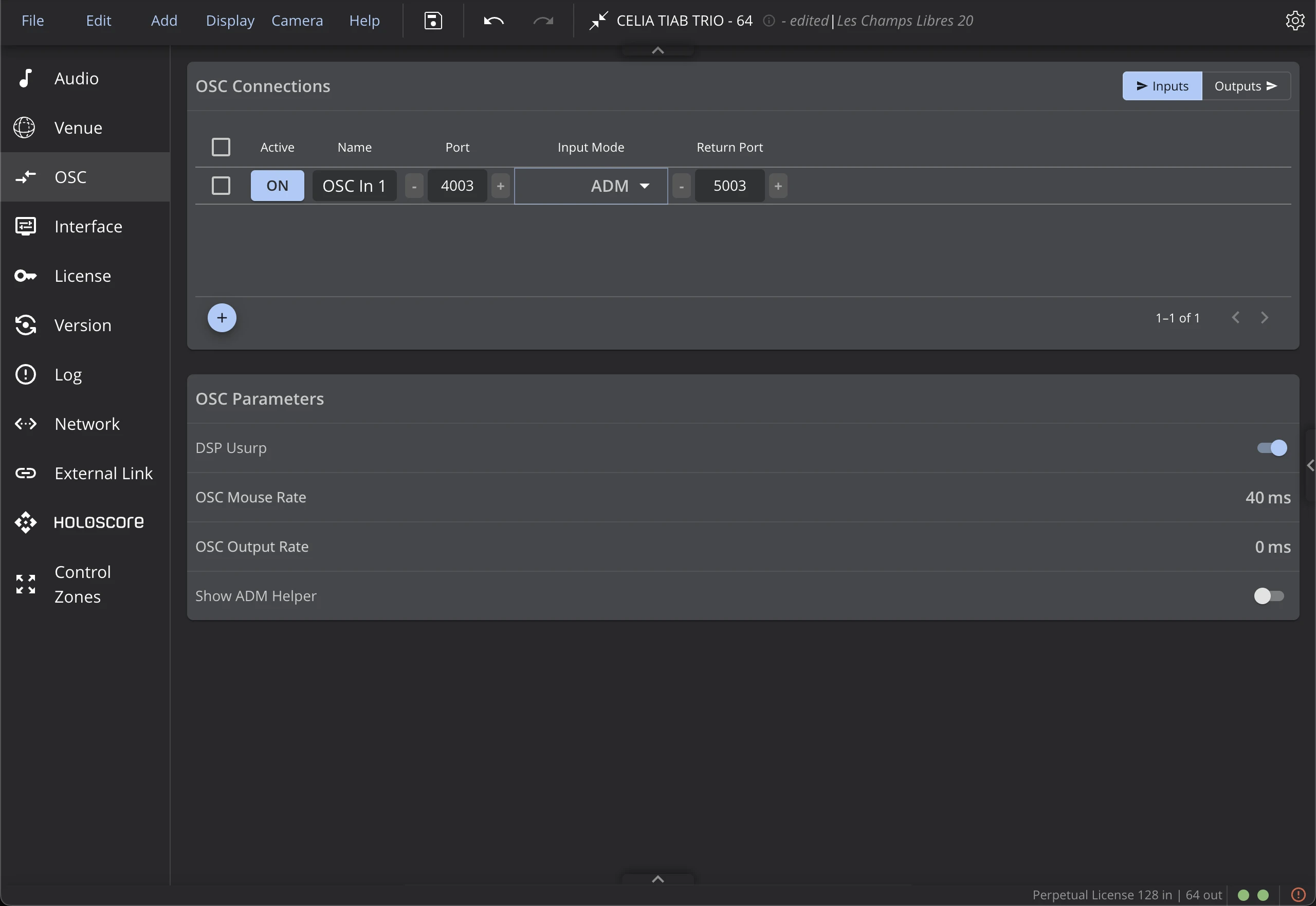
Out of the box there is one input, OSC In 1, listening on port 4003 in Any mode. Use the + button to add an input, and the trash button to remove the selected ones. Each input has the following settings:
Active
Enables or disables the input. Only active inputs receive OSC messages.
Name
A free label to identify the input (for example "Reaper" or "Lighting desk"). New inputs are named OSC In 1, OSC In 2, … by default.
Port
The UDP port the input listens on. New inputs are automatically assigned the next free port, starting at 4003.
Two inputs cannot share the same port, and ports already used by the Audio Engine are not allowed. If you are using HOLOPHONIX Native or HOLOPHONIX Designer, make sure each OSC application on your computer uses a different input port.
Input Mode
Sets which OSC messages the input accepts — this is configured per input:
- Any — all OSC messages are received and processed if they match HOLOPHONIX's native OSC API.
- ADM — only messages following the ADM-OSC protocol are received; all others are ignored.
Because the mode is per input, you can run both at once. For example: keep one input in ADM mode on port 4003 for a DAW sending ADM-OSC, and add a second input in Any mode on port 4004 for a controller driving HOLOPHONIX's native OSC API.
Interface Tab
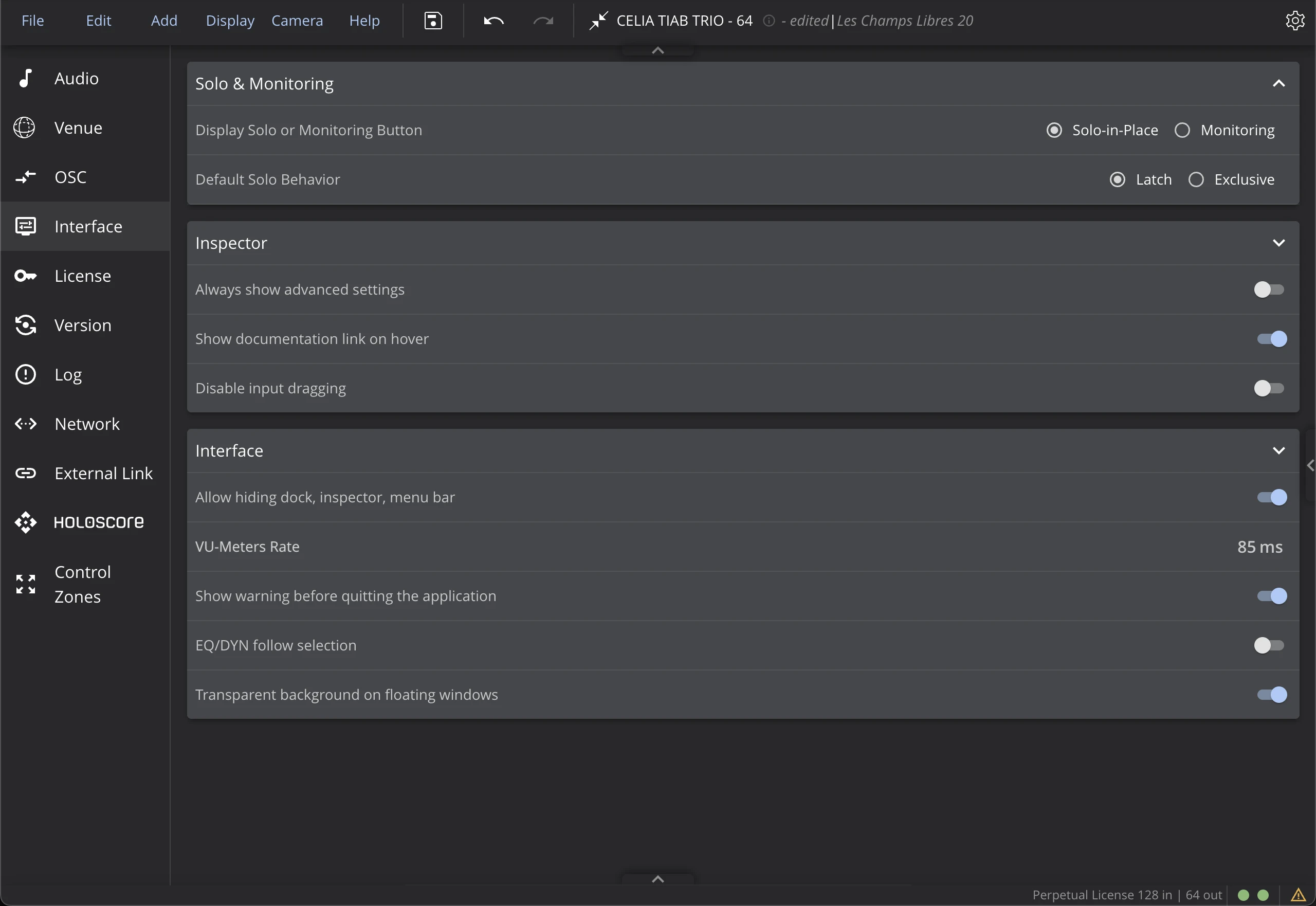
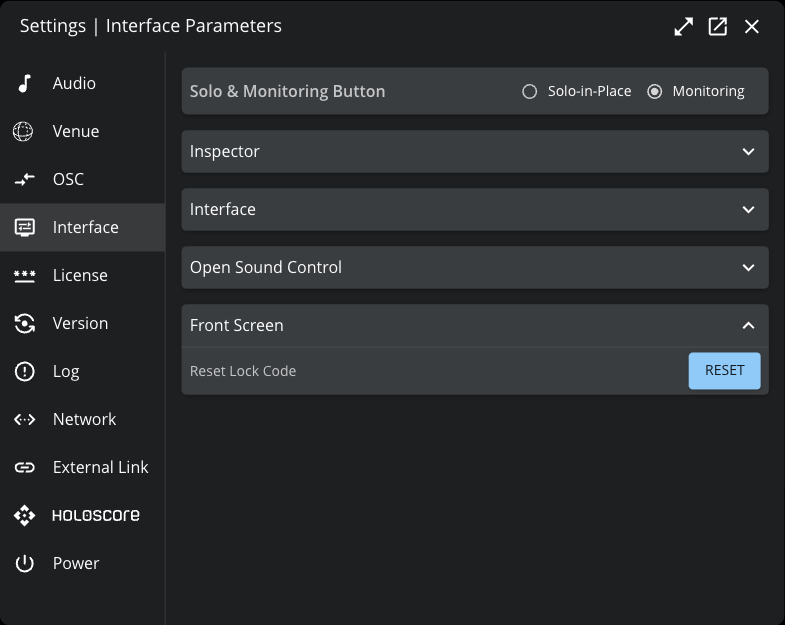
Solo & Monitoring Button
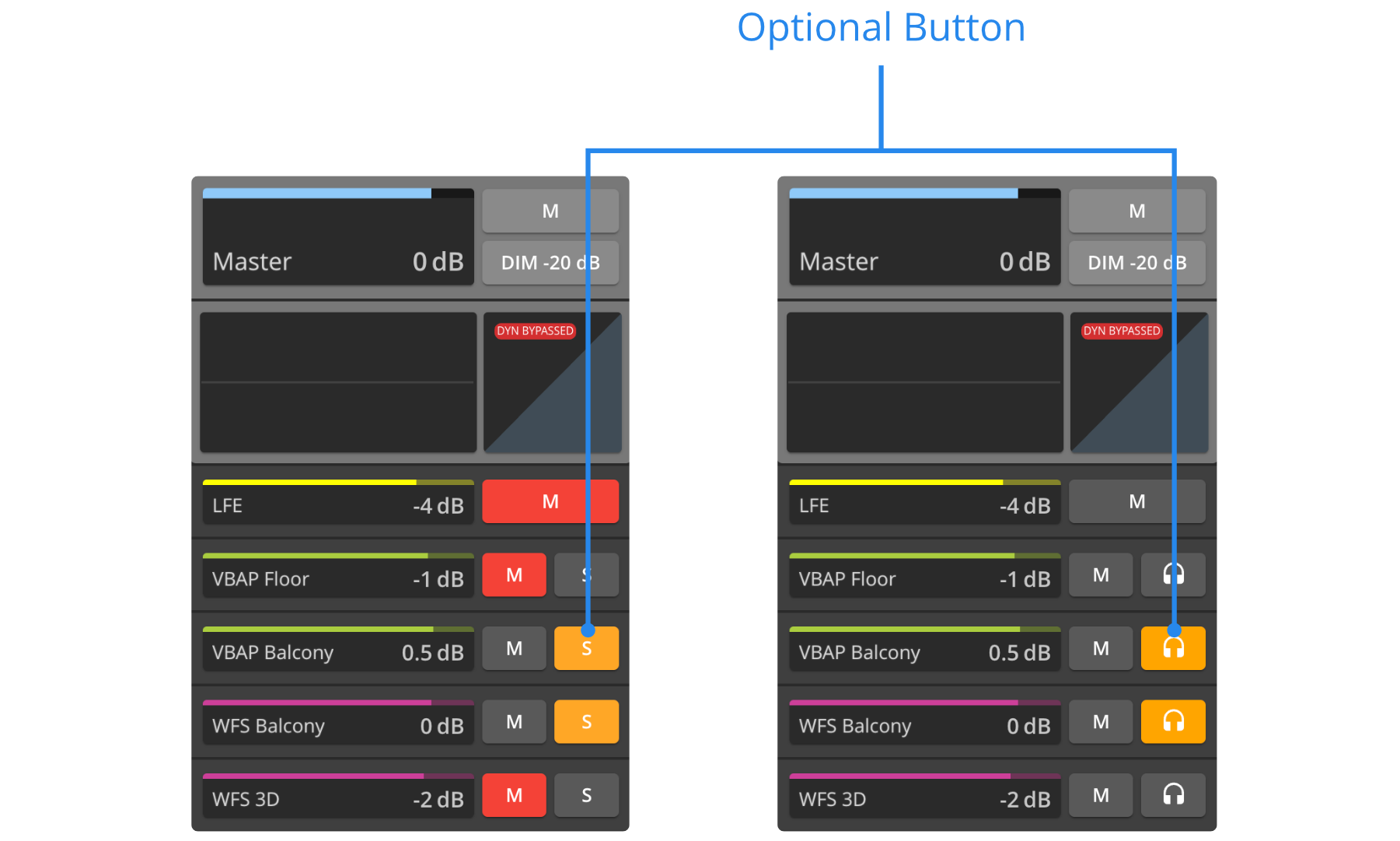
In the Main Page of the Inspector, or when you select a Bus, an optional button will be available, located on the right of the Mute button of any Bus. You can choose to use this button as a Solo-in-Place or Monitoring button. You can learn more about it in the Bus section of the documentation.
Default Solo Behavior
When in Solo-in-Place mode, you can choose the behavior to be either Latch (additive) or Exclusive behavior. In Latch Mode you can also press the Ctrl (Windows) or Command (macOS) to activate the exclusive mode once.
Inspector Section
Always show advanced settings
Activate this setting to show advanced settings throughout all of the interface, for all elements. When it is not activated, you can still show the advanced settings for one element by clicking Show Advanced Settings when available. You can display the advanced parameters on the following elements:
- WFS and HOA buses, in the Algorithm Tab.
- All buses, in the Reverb tab.
- In the Speaker Tab of the Routing Window
Show documentation link on hover
When activated, a lightbulb icon will appear if you hover long enough (2 seconds) over any parameter throughout the Interface. Click on it to access its corresponding entry in the offline documentation.
Disable Input Dragging
Many settings can be changed throughout the Interface with a click-and-drag. Activate this setting to deactivate this possibility. This can be useful to avoid any accidental value change.
Interface Section
Allow hiding Dock, Inspector, Menu bar
Activate this setting to be able to hide the Dock, Inspector, and Option Bar thanks to the arrows located on their respective edges.
VU-Meters Rate
This setting adjusts the display rate of the VU-Meters that are displayed in the 3D Venue and in the Mixer. Using a higher value can save graphical processing power on your computer, which can be useful on computers with low graphical processing power.
Show warning before quitting the application
In the Native app, activate this setting to be warned before quitting the application - even if you have saved your preset and project. We recommend leaving this setting on to avoid any accidental closing of HOLOPHONIX during a performance.
EQ/DYN follow selection
In the Inspector, you can choose to display the EQ or Dynamics of any Source or Bus as a floating window. When selecting another element, the floating window will by default display the EQ or Dynamics of the original element. Activating this setting will display the EQ or Dynamics newly selected element, therefore following any selection that you make in the Inspector, Mixer, Overview, or 3D Venue.
This setting only affects EQ and Dynamics for Sources and Buses. It does not affect EQ and Dynamics for Outputs and Reverb buses.
Transparent background on floating windows
By default, floating windows are slightly transparent. The interface behind it is therefore slightly visible. Deactivating this setting turns the floating window's background into a solid color based on your Interface theme.
Front Screen Code Section
This section allows you to reset the front screen code of HOLOPHONIX Ultra processors. If you have forgotten your front screen access code, you can use this feature to reset it back to the default code 0000. This ensures you can regain access to your processor's front screen interface even if the custom access code has been lost.
For more details on the HOLOPHONIX Ultra front screen interface, see Hardware Setup corresponding section
License Tab
- Processor
- Native
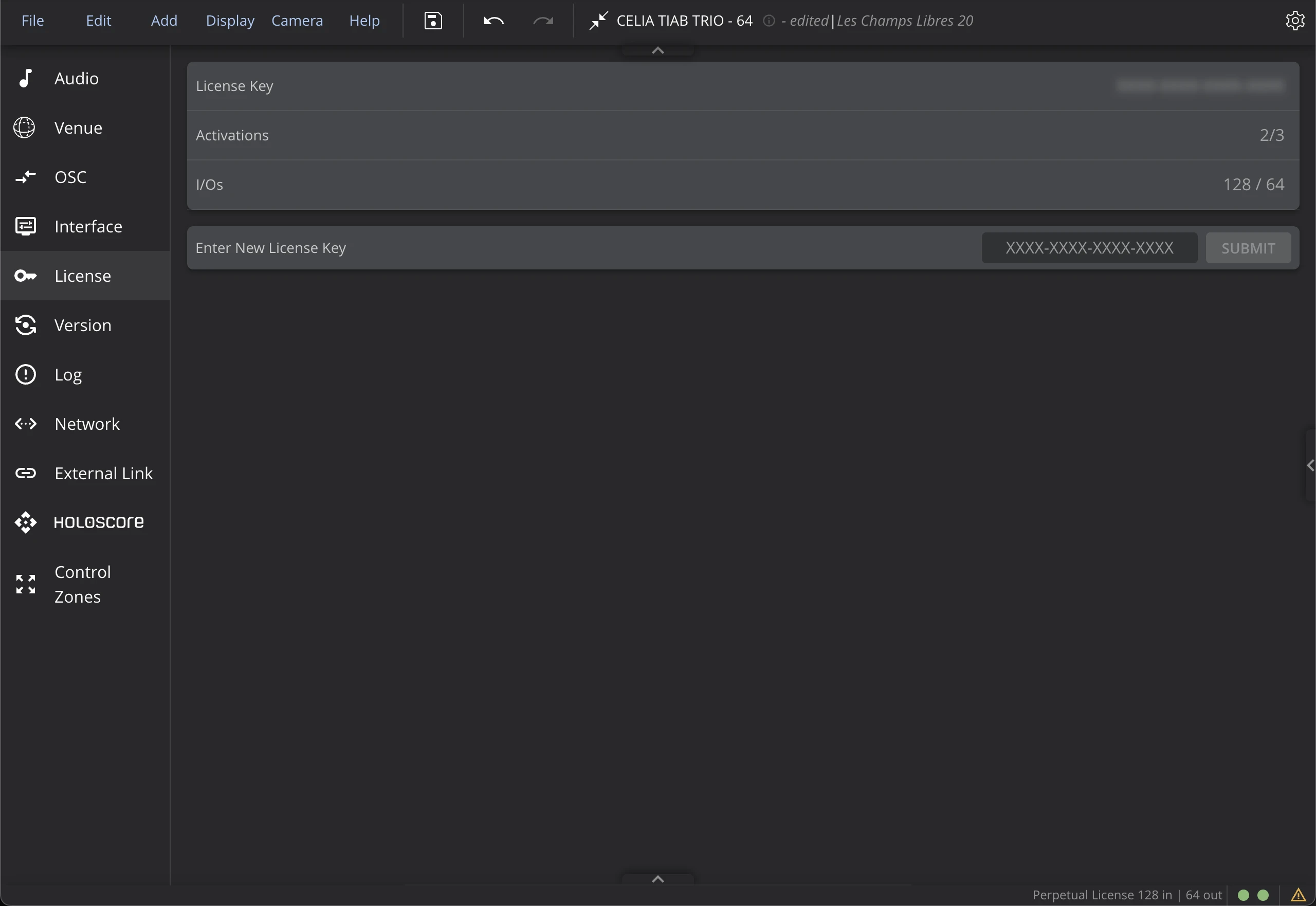
The upper section of the License Tab indicates the characteristics of the license activated on your HOLOPHONIX Processor. You can enter a new license key to replace the active one in the lower section.
The upper section of the License Tab indicates the characteristics of the HOLOPHONIX Native license activated on your Mac. You can enter a new license key to replace the active one in the lower section.
Version Tab
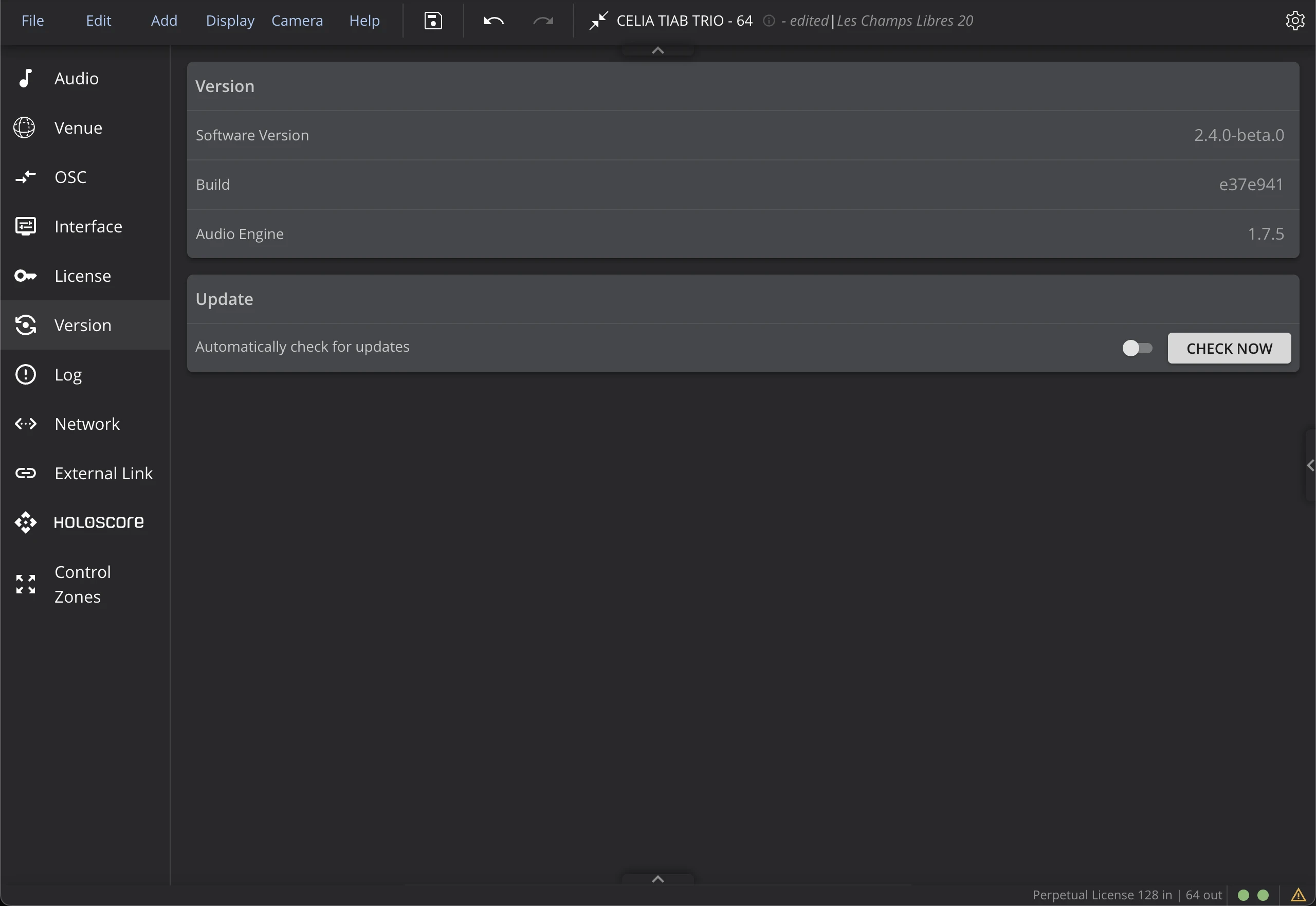
Automatically check for updates or manually check if updates are available when your HOLOPHONIX Processor or Native App is connected to the Internet.
Log Tab
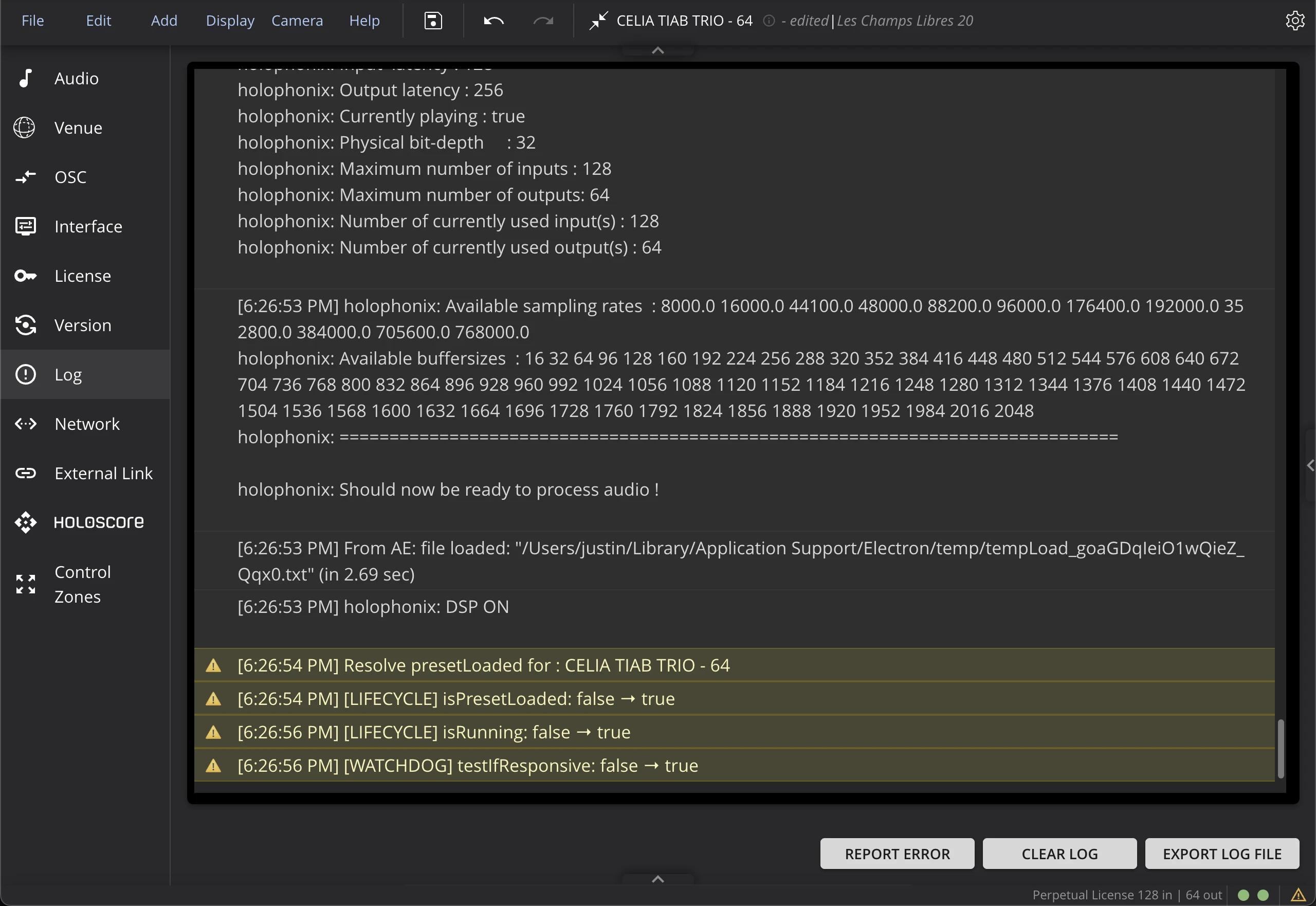
The Log tab shows messages to help identify the source of problems you might encounter. The error message often contains information about how to solve the problem if this is a configuration issue.
Use the Export Log button to export the logs to your computer and send them to user support if necessary.
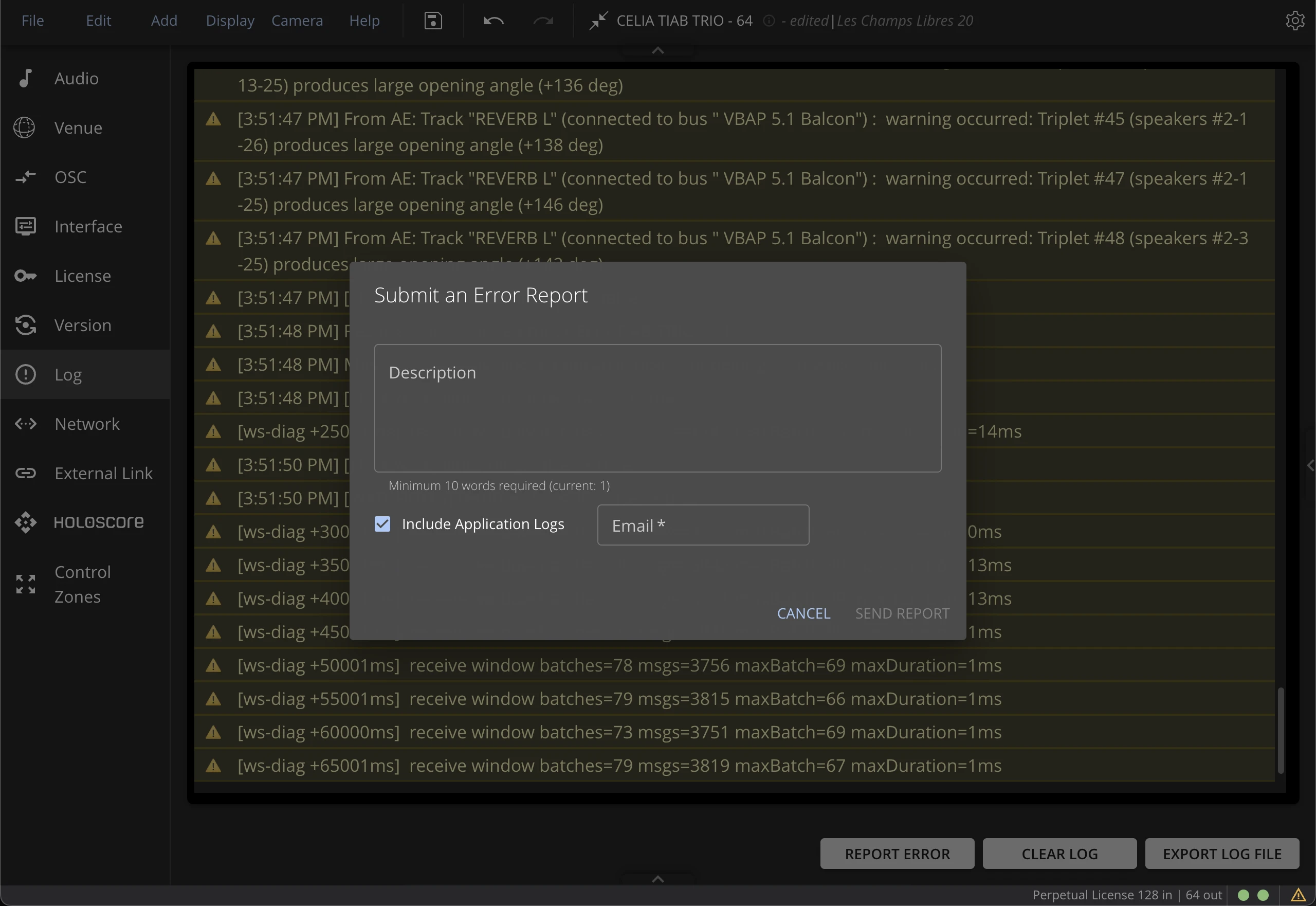
You can now report errors directly from the Log tab by providing a description and your email address. This will send the report to our support team, who will analyze the issue and respond promptly to help resolve any problems you encounter.
Network Tab
- Processor
- Native
The Network tab in HOLOPHONIX Processors allows you to change the IP parameters of your network ports. By default, Dante® ports are set to automatic (DHCP/Link Local) and Remote port is set to static IP 100.100.100.100/24. If necessary, use this tab to manually configure each IP domain to best suit your workflow or your site's existing network.
The Network tab of your HOLOPHONIX processor also allows you to activate the Service Mode when in contact with the support team so that they can access your processor remotely. In this case, make sure that your remote interface is correctly connected to the Internet and that you have contacted the support via the Support Platform.
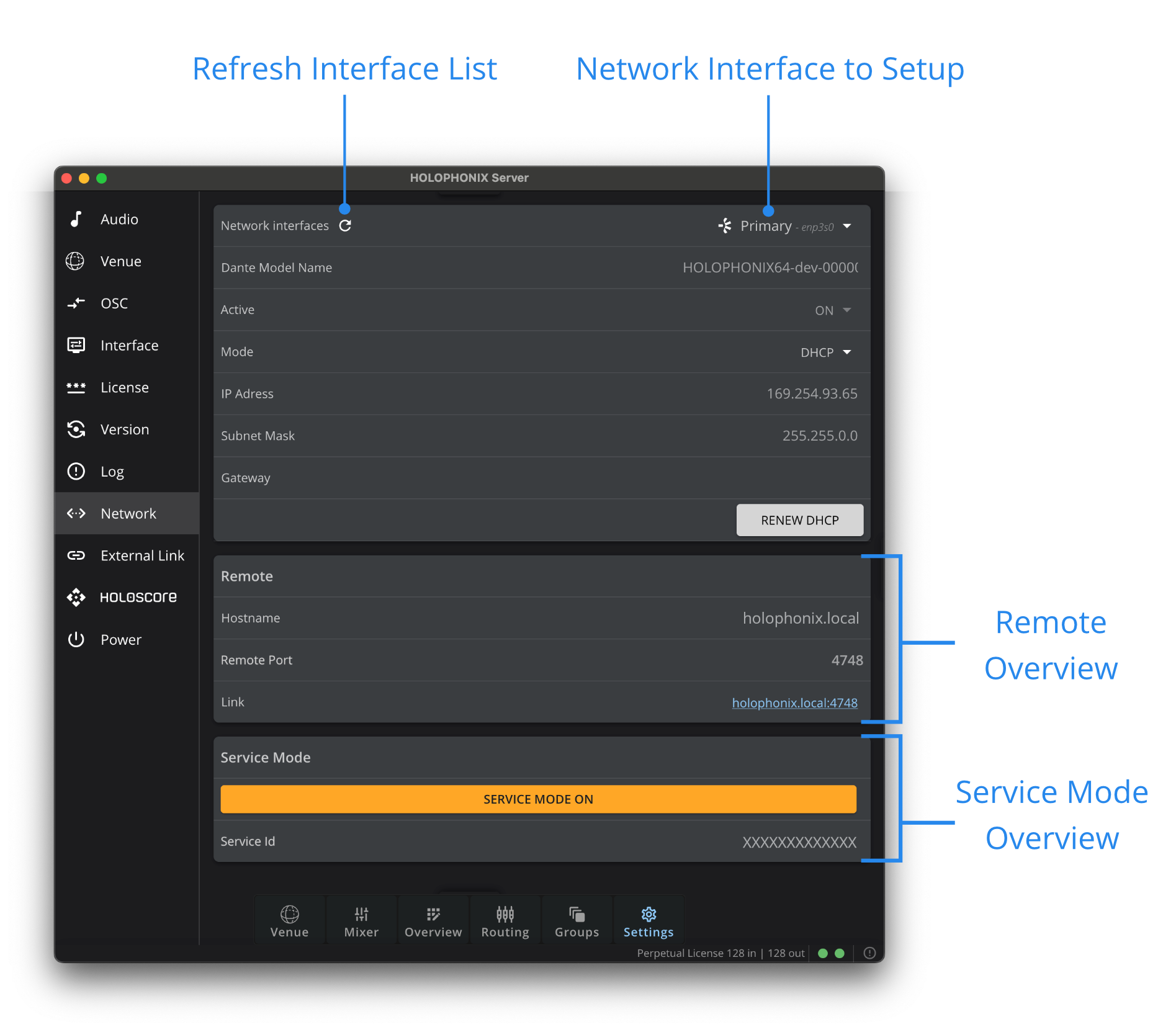
If you are connected remotely and modify the IP range of the remote management interface, your connection will be lost. To restore access, you must reconfigure your computer's IP address to match the new subnet of the remote interface.
- On 1st generation of the HOLOPHONIX Processor, you can edit the settings of the 3 Remote ports. Dante network configuration is available in the Dante Controller app connected on the primary subnet.
- On the 2nd & 3rd generation processor (HOLOPHONIX 64, 128 & HOLOPHONIX Ultra), you can edit the settings of Remote, Dante Primary and Dante Secondary ports. You cannot change the settings through the Dante Controller app.
- On HOLOPHONIX Ultra running 2.3.0 or newer, IP configuration of the 3 ports is also accessible via the front panel screen.
The Network tab in the HOLOPHONIX Native application allows you to view and access the Remote.
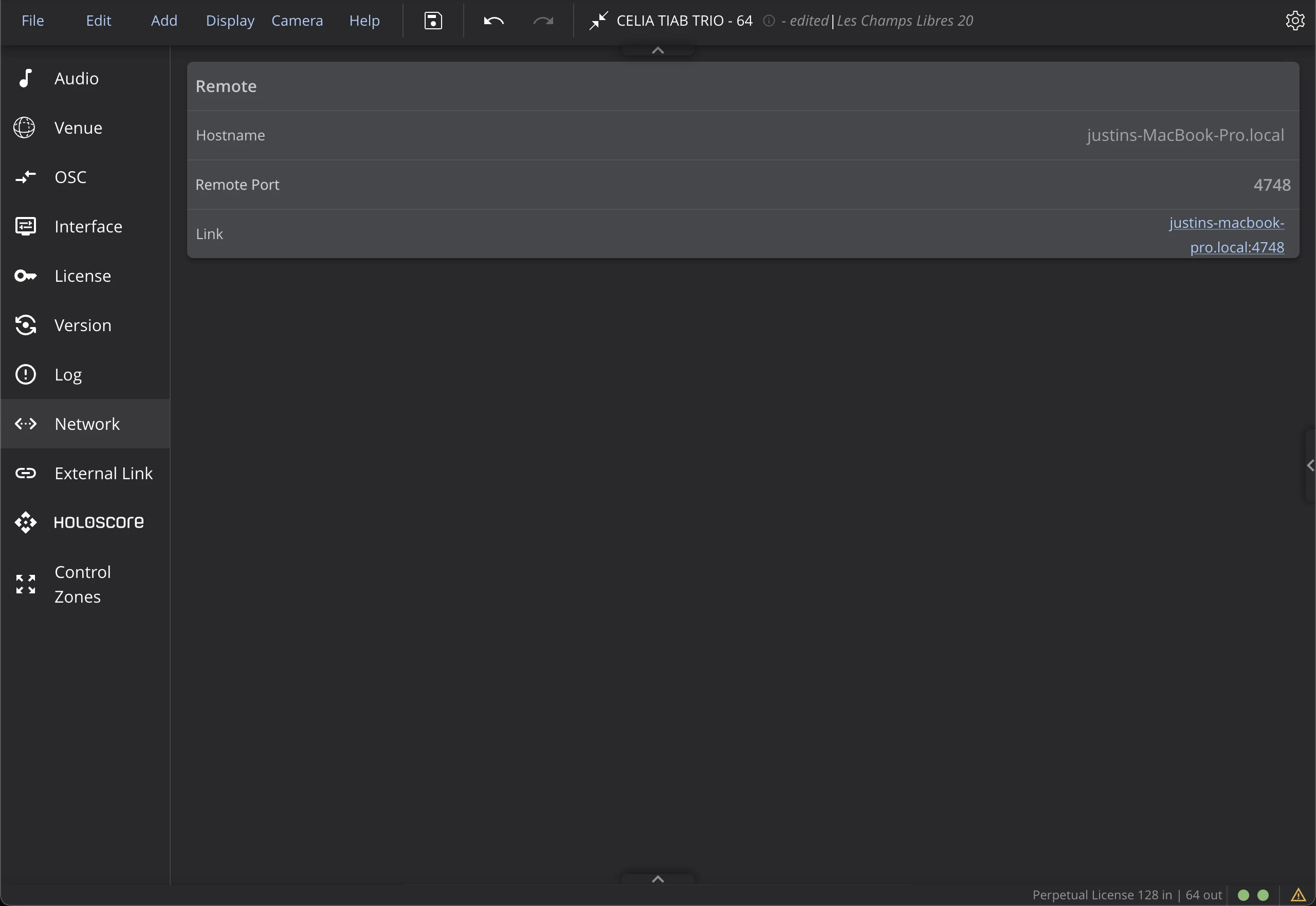
Mode
Static (Manual IP)
Manually set the desired IP address, subnet mask and router address.
Automatic (DHCP / Link-Local)
- If your network has a DHCP server, network ports are automatically assigned addresses in a range (typically within the
192.168.x.x/24subnet). - On primary and Remote ports, if there is no DHCP server and DHCP is selected, link-local mode will assign an address in the
169.254.x.x/16range (see APIPA). - On Secondary port, if there is no DHCP server and DHCP is selected, link-local mode will assign an address in the
172.31.x.x/16range (see Dante configuration).
To configure a network port, it must be connected to a network. Otherwise, it won't appear in the Network interfaces list.
- Select the network interface you want to configure.
- Choose between automatic IP addressing (DHCP) or manual IP addressing (static).
- In STATIC mode, enter the IP address and subnet mask.
- Click on APPLY CHANGES or RENEW DHCP to apply the new settings. The RENEW DHCP button will appear if no parameters were changed and you are in DHCP mode, prompting you to renew the DHCP lease.
CIDR notation (e.g. /16) and dotted decimal notation (e.g. 255.255.0.0) are two ways to represent the same subnet mask:
-
CIDR (/x) indicates the number of bits set to 1 in the subnet mask.
-
The dotted decimal form shows the same mask in base 10. Example: /24 = 255.255.255.0, /8 = 255.0.0.0, etc.
External Link Tab
The External Link feature creates a bidirectional connection between HOLOPHONIX and Yamaha mixing consoles, streamlining your workflow by allowing you to:
- Control HOLOPHONIX sources from your Yamaha console
- Synchronize labels and colors between both systems
- Manage faders and mutes
- Control source positioning using Pan/Surround controls
- Save connection states within HOLOPHONIX presets
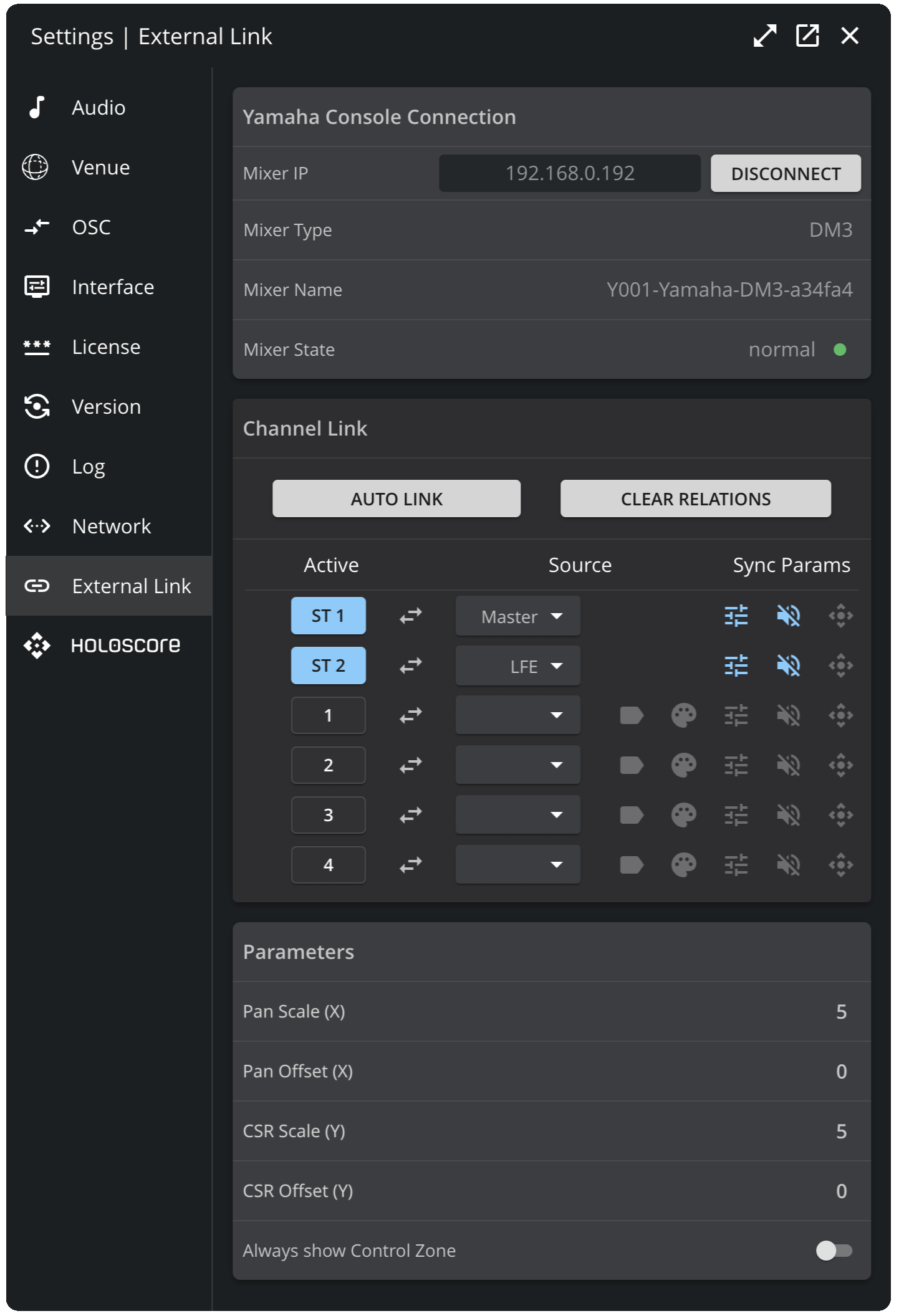
Control of an HOLOPHONIX Source by External Link and HOLOSCORE at the same time is not yet fully supported as of version 2.3.0. It is recommended to control a source's parameter (position for example) by either External Link or HOLOSCORE.
You can find a complete presentation of the External Link features in the External Link section.
HOLOSCORE Tab
The HOLOSCORE tab deals with managing connections with our HOLOSCORE plugin. You can download the HOLOSCORE plugin on holophonix.xyz/support/downloads and learn more about it's functionalities in the HOLOSCORE Plugin section.
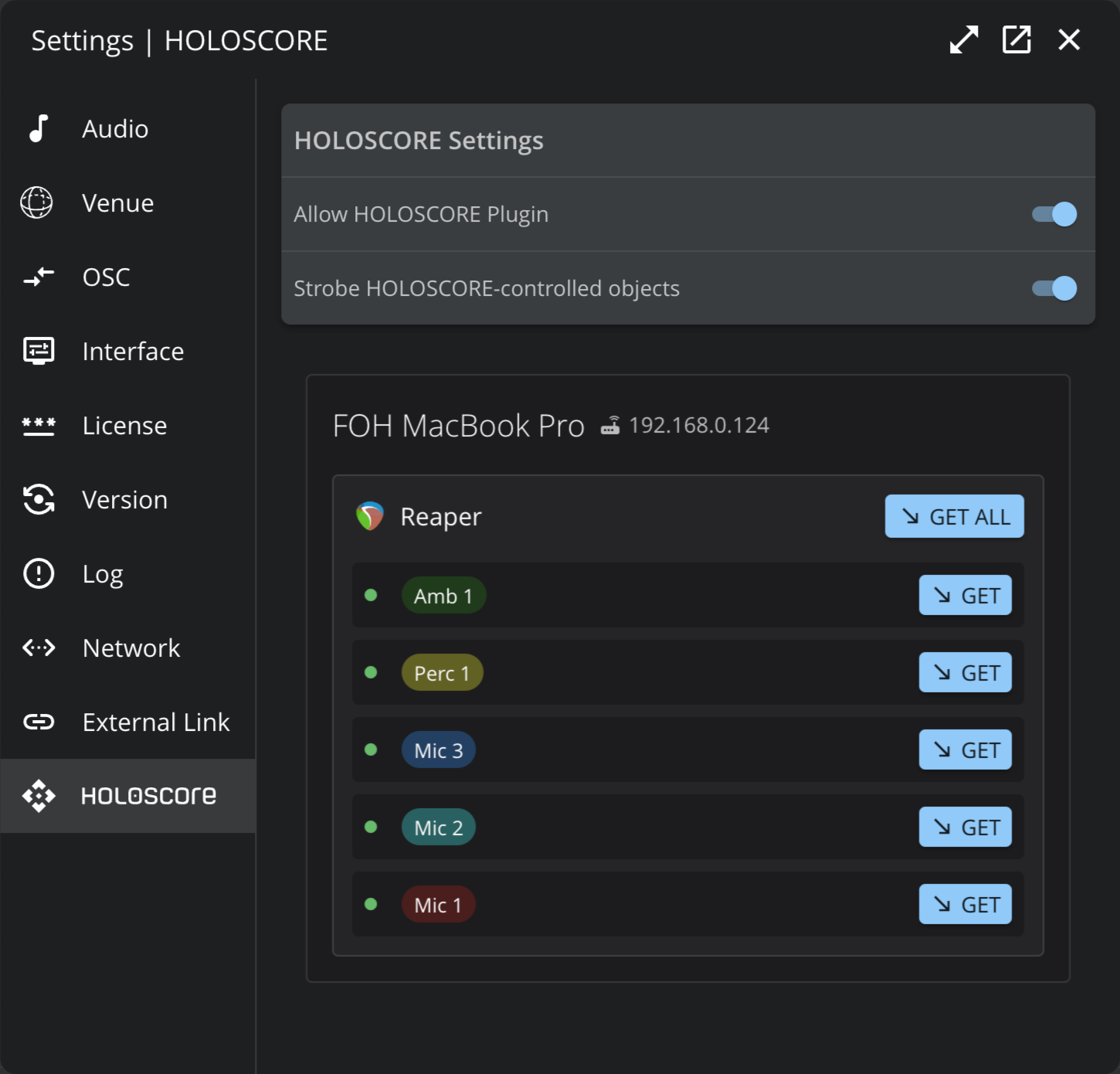
General Settings
Allow HOLOSCORE Plugin
This setting allows you to globally enable or disable any HOLOSCORE plugin connections to your HOLOPHONIX. When disabled, no HOLOSCORE plugin will be able to connect to this HOLOPHONIX.
Strobe HOLOSCORE-controlled objects
When Sources are controlled externally through HOLOSCORE, they appear as blinking elements to easily identify them. This setting is activated by default.
Connected Plugins
This section displays a list of all HOLOSCORE plugin instances currently connected to your HOLOPHONIX. For each instance, you can see:
- The Hostname and IP address of the machine(s) running the plugin(s)
- The DAW(s) in which the plugin instance is running
- The HOLOPHONIX target associated with this instance
GET Button
Each plugin instance has a GET button that allows you to synchronize the DAW track's name and color with its associated target in HOLOPHONIX. When clicked, HOLOPHONIX will retrieve the track name and color from your DAW and apply them to the corresponding target.
This feature helps maintain consistency between your DAW session and HOLOPHONIX preset.
Control Zones
In the control zones settings, you can create multiple control zones to organize your sources in the 3D Venue. A control zone is a defined area in the 3D Venue that can be used to define and limit sources positions for easier control when using external remotes.
The configuration panel allow you to create control zones, and edit the position and size of each zone.
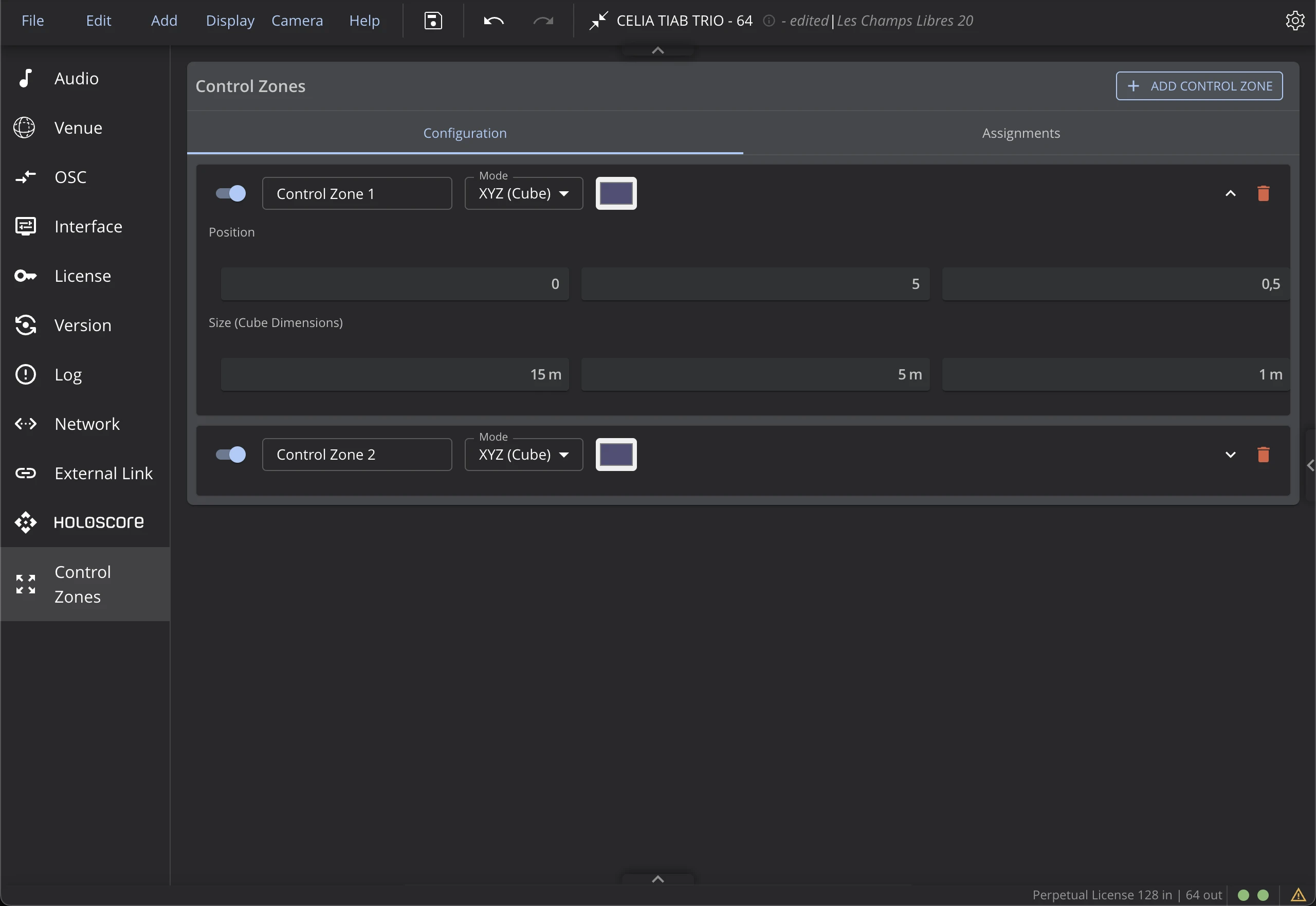
The Assignments panel allows you to assign sources to a specific control zone. When a source is assigned to a control zone, its position will be limited to the area of the control zone in the 3D Venue. This can be useful to avoid moving sources outside of a specific area of the 3D Venue when using external remotes.
To assign multiple sources to a control zone, you can select them in the Overview or 3D Venue, and then use the Control Zone selection in the object panel of the inspector. See the Control Zone section of the documentation for more details.
Power tab
The Power tab is exclusive to HOLOPHONIX processors.
From this tab, you can access the SHUT DOWN or REBOOT options.