OSC Status
The OSC Status window allows you to monitor the status of the parameters available in the current preset. It is a very useful tool for quickly accessing the value of a particular parameter and checking that it is set appropriately.
The OSC Status window is accessed via the Help button at the top of the screen. Once open, you can monitor the status of a particular element by entering its OSC address. More information about OSC messages can found on the dedicated Open Sound Control section.
For example, if you wanted to monitor the parameters of the first spatialization bus, you would type "/bus/1/" in the search bar, and all the parameters associated with this OSC address would be displayed. For instance, in our case we can monitor the name of the bus, the associated EQ and dynamic effects, information on the associated loudspeakers, etc.
It is possible to copy a given OSC message and its corresponding value to the clipboard by clicking on the desired parameter.
Like any parameters in HOLOPHONIX, when hovering over an OSC message with the mouse, the Quick Info light bulb appears and allows you to directly access the relevant paragraph in the Documentation.
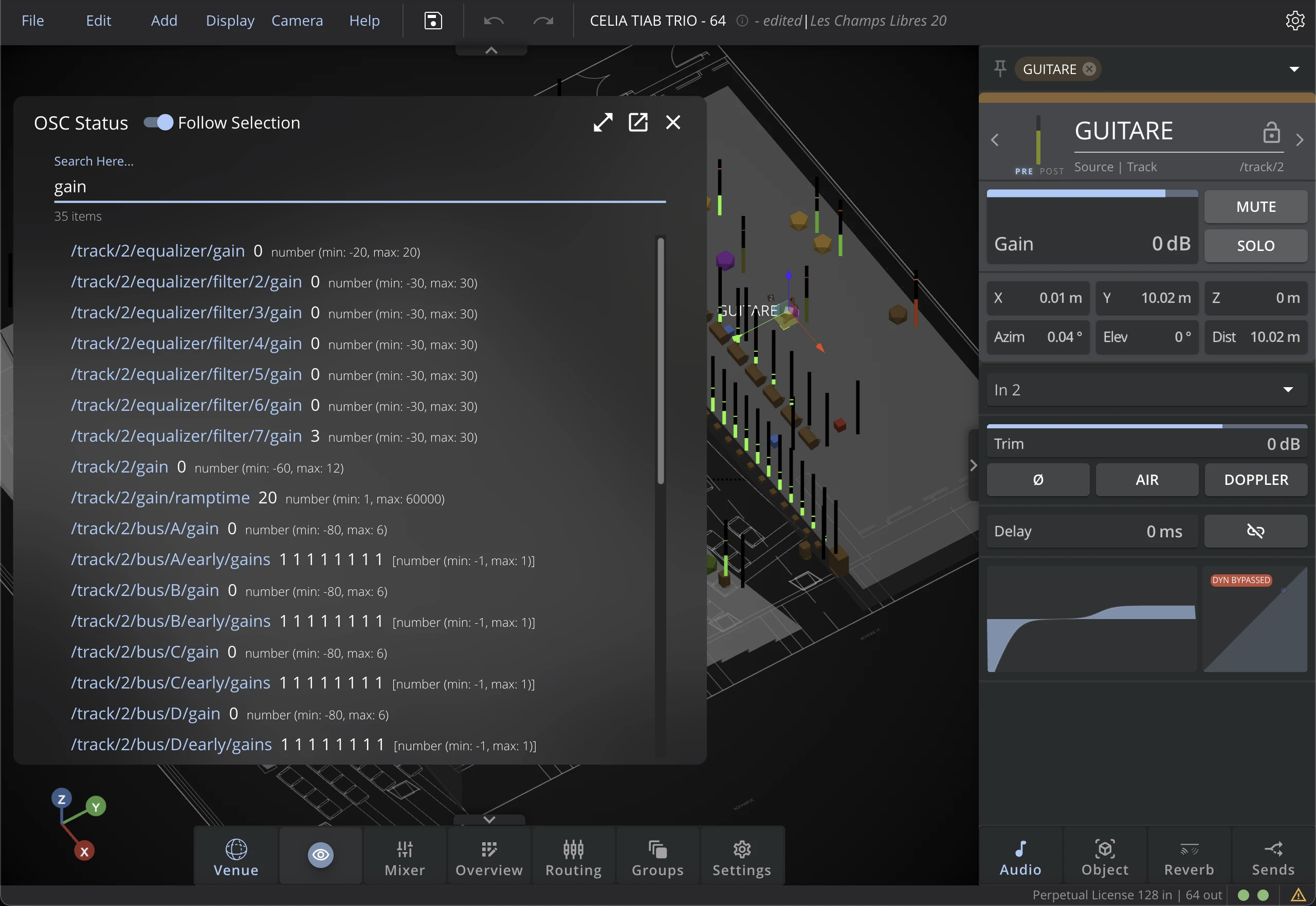
Value Scales Display
Parameters display their values with appropriate types, scales (min, max, length, etc.) and available values.
Follow Selection
The new "Follow Selection" feature automatically filter the OSC Status window based on your current selection in the main interface:
- Enable Follow Selection by clicking the toggle button in the top of the OSC Status window
- Select any object in the main interface (source, bus, speaker, etc.)
- The OSC Status window will automatically show parameters for the selected object
Copy/Paste
You can click an item in the OSC Status window to copy its OSC message and value to the clipboard. This allows you to easily share or document specific parameter settings.
Multi-Selection
The OSC Status window supports multi-selection for copying multiple items at once:
Selection Methods
- Single Click Selection: Click an item to select it. This deselects any previous selection and copies the item to clipboard immediately.
- Range Selection: Hold Shift and click to select a range of items from the last clicked item. All items in the range are copied as comma-separated values using Ctrl+C (Windows) or Cmd+C (Mac).
- Smart Copy Behavior: Clicking a selected item again deselects it without copying.
Keyboard Shortcuts
These shortcuts apply when the OSC Status list is focused:
- Select all visible items: Ctrl+A (Windows/Linux) or Cmd+A (Mac)
- Copy selected items: Ctrl+C (Windows/Linux) or Cmd+C (Mac)
- Clear selection: Esc
Bulk Copy
When multiple items are selected, they are copied to the clipboard as comma-separated values in the format: item1, item2, item3
Visual Feedback
Selected items are highlighted with a distinct background color so you can clearly see which items are included in your selection.