Project & Preset Managers
Project Manager
From the Project Manager, you can create, import and export, rename, and delete projects. Click on Load to open a project. You can also see the creation and modification dates.
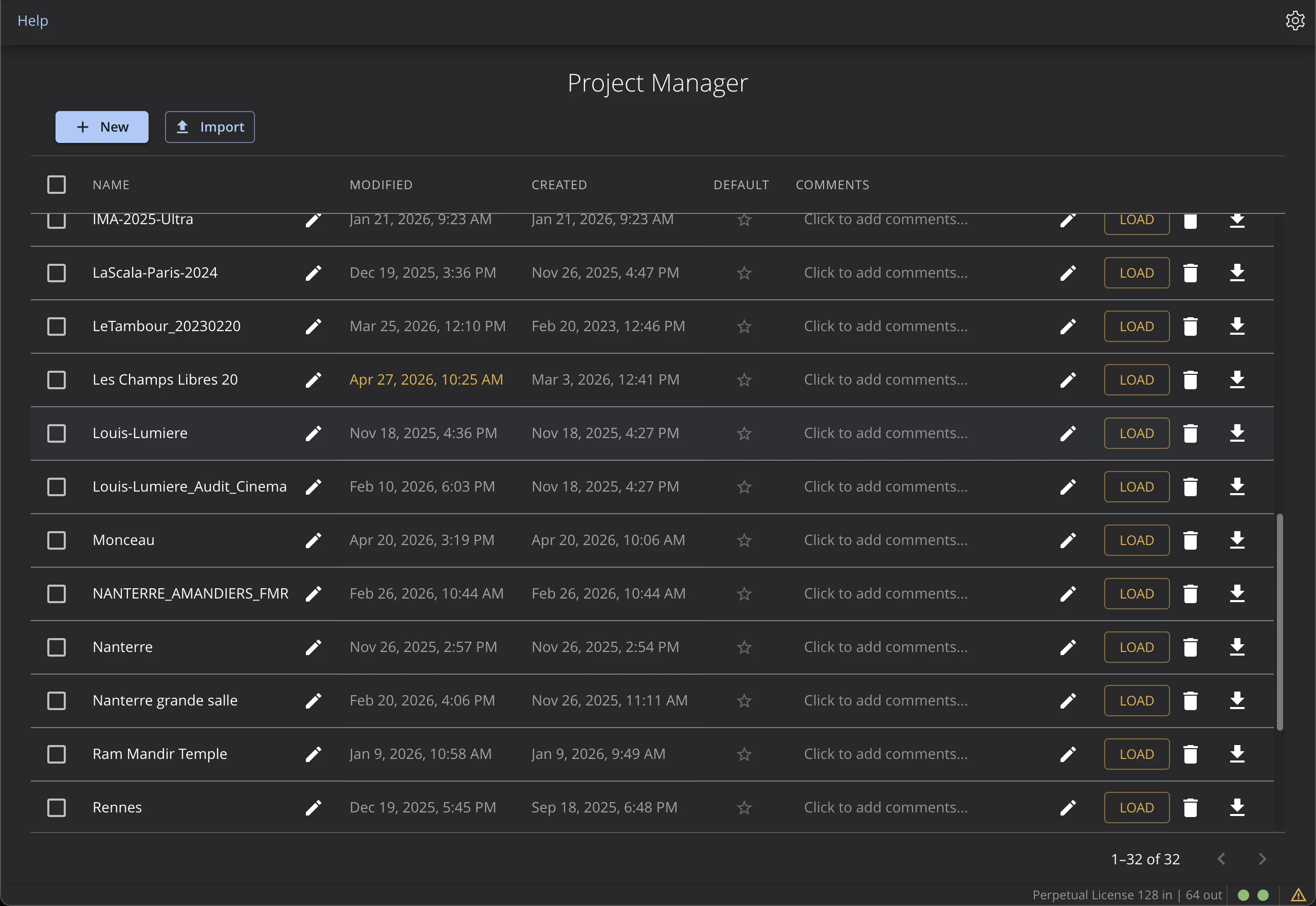
Press Ctrl+Shift+O (Windows/Linux) or Cmd+Shift+O (macOS) to open the Project Manager. See Keyboard Shortcuts for the full list.
Default Project
Choose the Project that will automatically be loaded at startup by clicking on the star icon of the desired project.
Comments
You can add comments to a project by clicking on the comment field. This allows you to keep track of important information about the project, such as its purpose, specific settings, or any other relevant details.
Preset Manager
From the preset manager, you can create, import, export, rename and delete presets. Click on Load to open a preset. You also have information about the creation and modification dates.
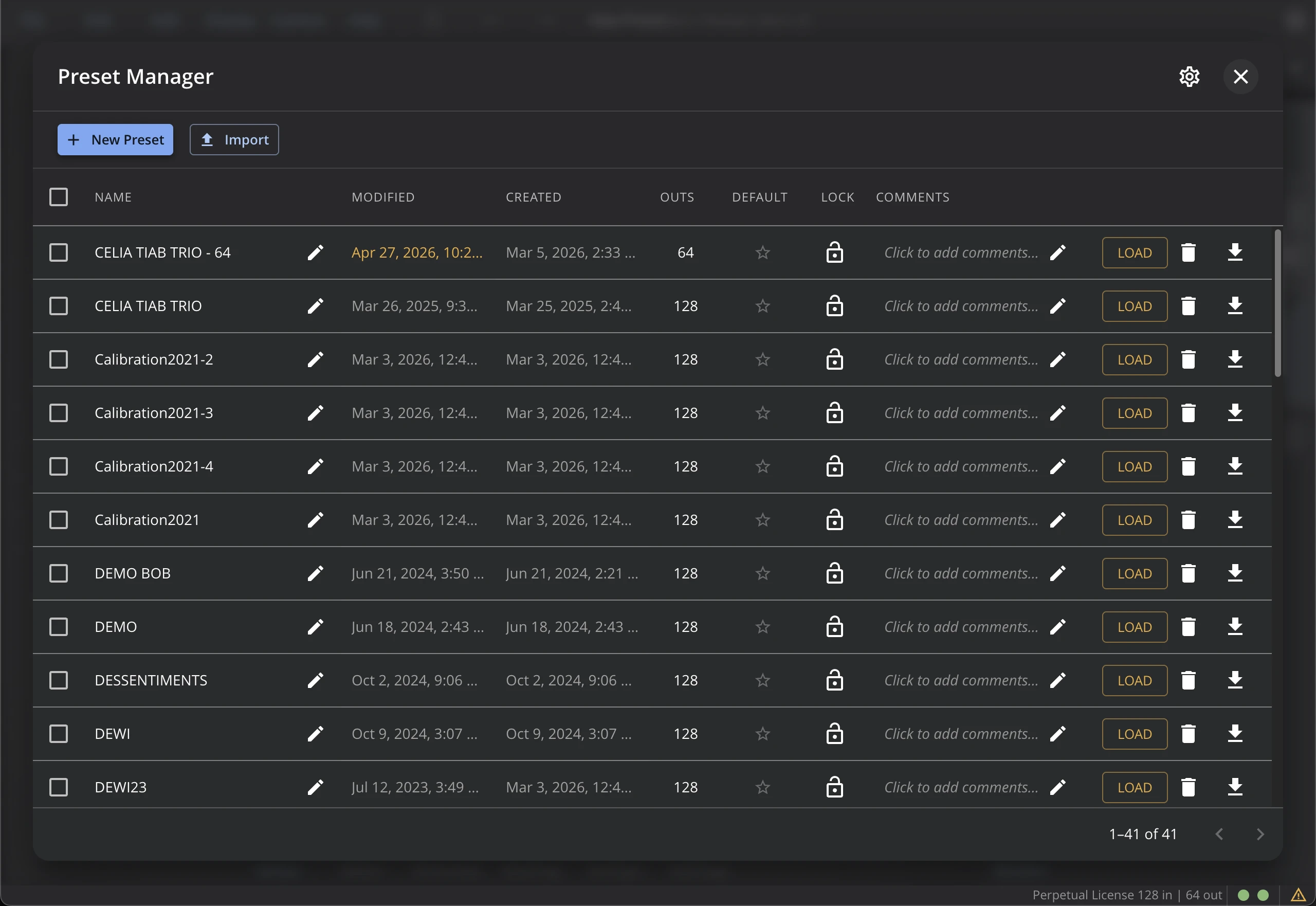
Press Ctrl+O (Windows/Linux) or Cmd+O (macOS) to open the Preset Manager. See Keyboard Shortcuts for the full list.
Default Preset
Choose the Preset that will automatically be loaded at startup by clicking on the star icon of the desired preset.
Locked Preset
Presets that are locked can't be modified or deleted. You can use the 'Save As' function to create a copy of the locked preset.
Comments
You can add comments to a preset by clicking on the comment field. This allows you to keep track of important information about the preset, such as its purpose, specific settings, or any other relevant details.
Duplicate
Selecting a preset and clicking on the duplicate icon creates a copy of the preset with the same settings and a new name. This is useful for creating variations of a preset without modifying the original.
Export/Import
You can export a single or multiple presests by selecting them and clicking on the export icon. This allows you to save your presets externally and share them with others. To import presets, click on the import icon and select the preset file you want to add to your library.
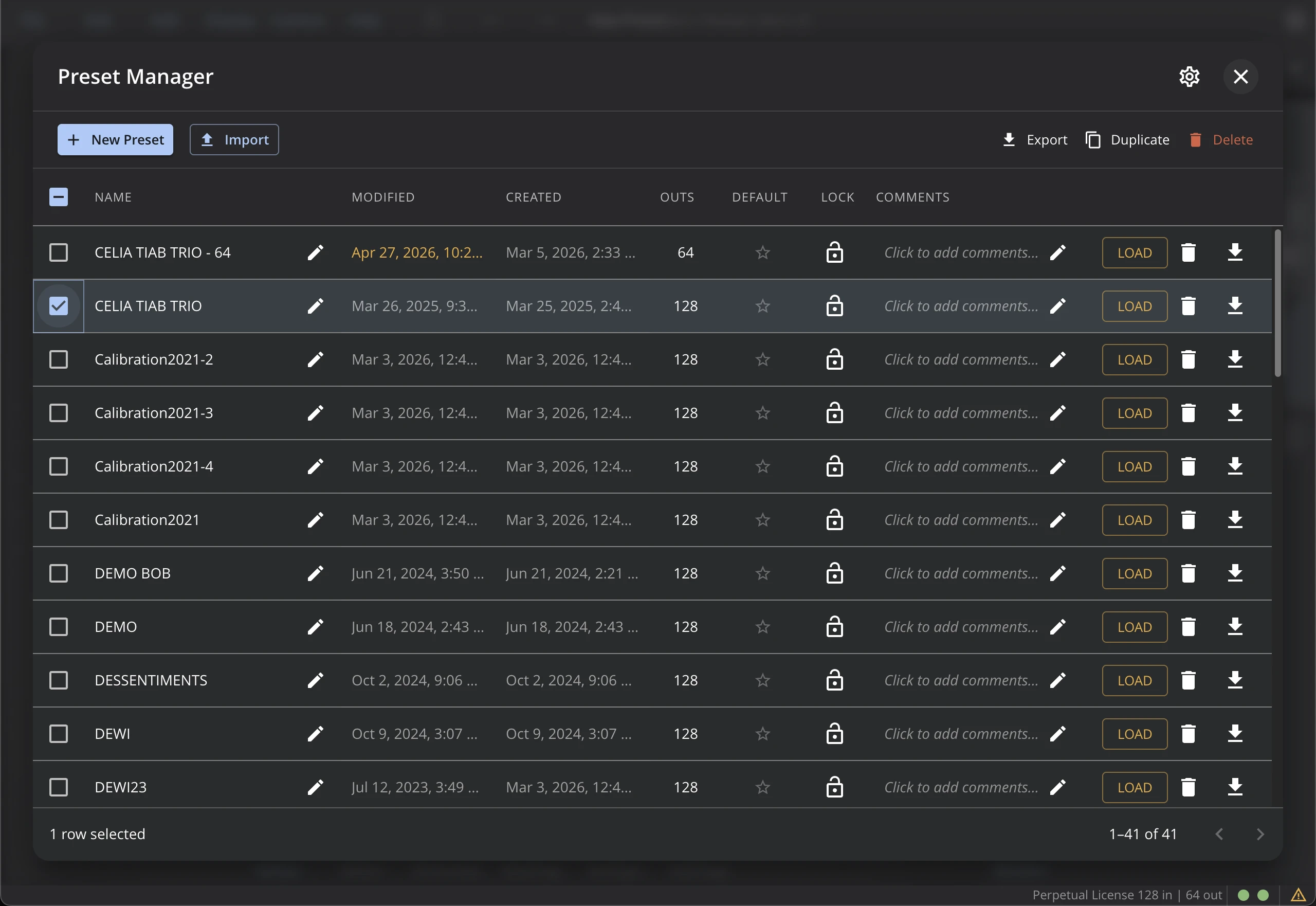
Options
Using the cog ⚙ icon, you can select the export format for the selected presets, between Holophonix and Panoramix formats.